
Data loss does not always mean the same thing.
Sometimes you accidentally delete a folder containing important photos. Sometimes an external drive becomes unreadable. In other cases, Windows refuses to boot after an update, an SSD fails, or an entire system needs to be restored onto a replacement drive.
Those problems require different tools.
That distinction is essential when comparing EaseUS Data Recovery Wizard vs Macrium Reflect.
EaseUS Data Recovery Wizard is primarily designed to recover files after they have been deleted, formatted, lost, or made inaccessible. It scans storage devices looking for recoverable data.
Macrium Reflect takes a different approach. It is primarily backup, disk imaging, cloning, and disaster-recovery software. Instead of waiting for files to disappear and then searching for them, Macrium encourages you to create recoverable copies of your system before disaster happens.
So this is not a conventional comparison between two identical products.
If you accidentally deleted 20GB of photos without having a backup, EaseUS is the relevant tool. If your Windows system drive dies but you created a Macrium image yesterday, Macrium is the much better solution.
The winner therefore depends almost entirely on what happened before your data disappeared.
EaseUS vs Macrium: Quick Comparison
| Feature | EaseUS Data Recovery Wizard | Macrium Reflect |
|---|---|---|
| Primary Purpose | Deleted/lost file recovery | Backup and disaster recovery |
| Deleted File Recovery | Excellent | Not its primary function |
| Formatted Drive Recovery | Excellent | Requires an existing backup/image |
| RAW Partition Recovery | Excellent | Not designed primarily for RAW file carving |
| Deep Scan | Yes | No equivalent recovery scan |
| File Preview Before Recovery | Yes | Backup browsing rather than recovery scanning |
| Disk Imaging | Recovery-focused options/ecosystem | Excellent |
| Disk Cloning | Available through other EaseUS tools | Excellent |
| System Backup | Separate EaseUS backup software | Excellent |
| Bare-Metal Restore | Not Data Recovery Wizard’s focus | Excellent |
| Bootable Rescue Media | Recovery capabilities available | Excellent |
| Ransomware Protection | Not primary focus | Available in relevant Reflect editions/features |
| Incremental Backup | Not Data Recovery Wizard’s purpose | Yes |
| Differential Backup | Not Data Recovery Wizard’s purpose | Yes |
| Best For | Recovering files after data loss | Preventing catastrophic data loss |
| Ease of Use | Excellent | Very Good |
| Technical Control | Moderate | Excellent |
| Overall Approach | Reactive | Preventive |
This table explains the entire comparison.
EaseUS asks:
“What have you already lost?”
Macrium asks:
“How can we make sure you can restore everything if something goes wrong?”
Both approaches matter.
EaseUS Data Recovery Wizard: What Does It Actually Do?
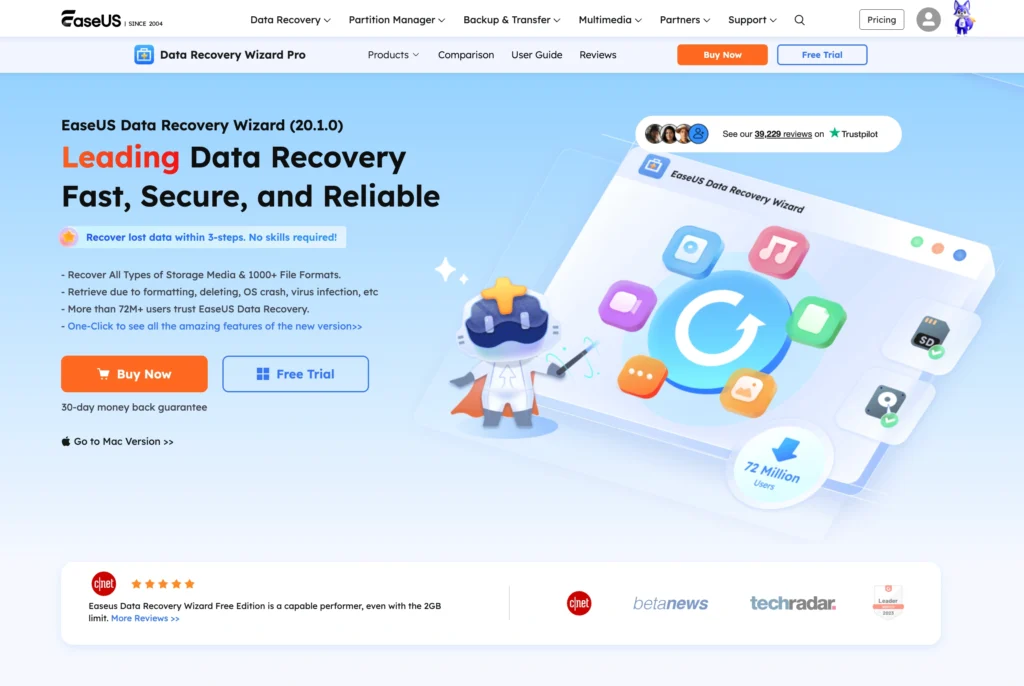
EaseUS Data Recovery Wizard is a dedicated recovery application.
You select a storage location, scan it, review the discovered files, preview recoverable content, and restore selected information to another storage device.
Its main strength is recovering data that does not exist in a usable backup.
Suppose you accidentally delete a folder containing 2,000 photos and then empty the Recycle Bin.
Macrium cannot travel backward in time and create yesterday’s backup.
EaseUS can scan the storage device and look for remnants of those deleted files.
The same principle applies when a memory card gets formatted or an external hard drive suddenly appears as RAW.
EaseUS can attempt recovery from situations including:
- Accidentally deleted files
- Emptied Recycle Bin
- Shift + Delete
- Formatted drives
- Lost partitions
- RAW partitions
- External hard drives
- USB flash drives
- Memory cards
- SSDs
- NAS storage
- Certain crashed-PC situations
This makes EaseUS reactive software. Something has already gone wrong, and now you are trying to minimize the damage.
Macrium Reflect: A Different Type of Recovery
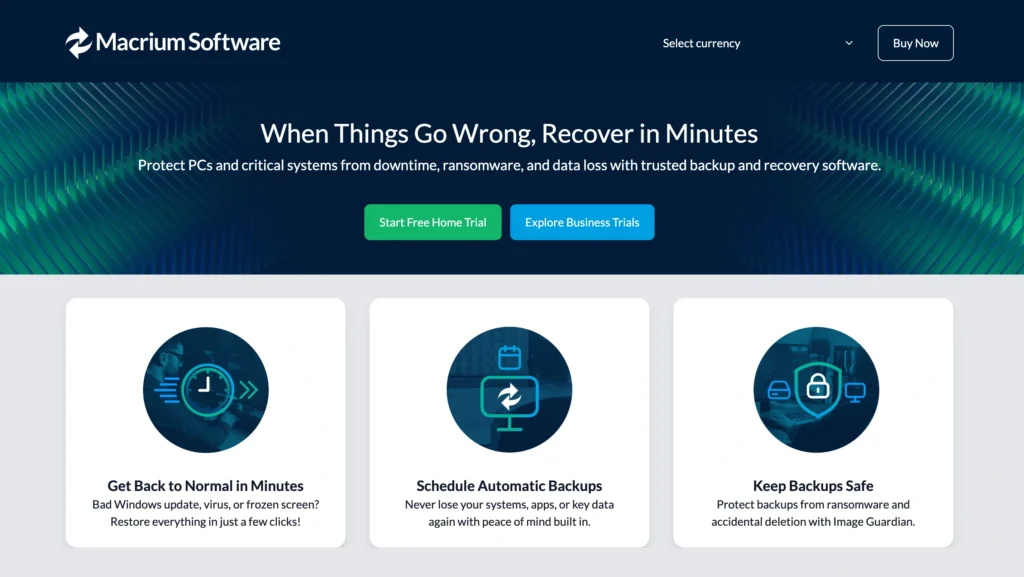
Macrium Reflect approaches recovery from the opposite direction.
Instead of searching storage devices for deleted fragments, it creates backups and disk images while your data is healthy.
A disk image can contain the information required to restore an entire drive or selected partitions.
That means you can potentially recover:
- Windows
- Applications
- Personal files
- System settings
- Boot information
- Partitions
- Complete drives
Imagine your Windows SSD dies tonight.
If you have no backup, you may need to replace the SSD, reinstall Windows, reinstall every application, configure everything again, and attempt to recover whatever personal files are still accessible.
If you created a recent Macrium image, the situation is completely different.
You can replace the failed storage device and restore the image.
That is a fundamentally more complete form of disaster recovery.
Interface Showdown
EaseUS and Macrium reflect their different audiences through their interfaces.
EaseUS is designed for someone who may have downloaded recovery software for the first time five minutes after accidentally deleting something important.
Macrium assumes the user is thinking about storage more systematically.
EaseUS Interface
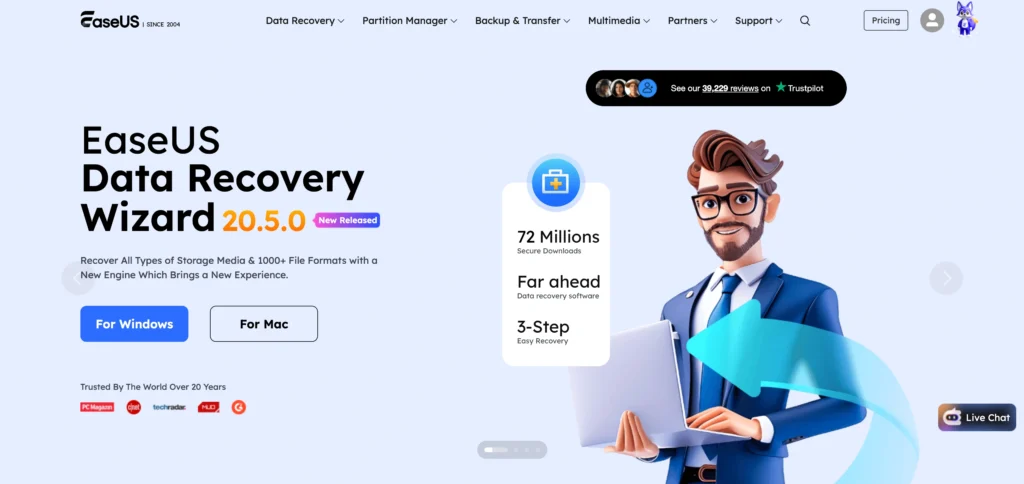
EaseUS has one of the easier interfaces in the consumer recovery category.
The main screen presents available storage locations and drives. You select the location where your missing data originally existed and start scanning.
EaseUS then handles most of the complicated recovery process.
Once results begin appearing, you can narrow them using filters. File type, size, date, and other available information can help separate useful results from thousands of irrelevant files.
File previews are particularly valuable.
Seeing a filename does not guarantee that the file is intact. Previewing a photograph, document, or other supported file gives you a much better idea of whether the underlying information remains usable.
The overall process is:
- Select.
- Scan.
- Filter.
- Preview.
- Recover.
It is difficult to make serious data recovery much simpler than that.
Macrium Reflect Interface
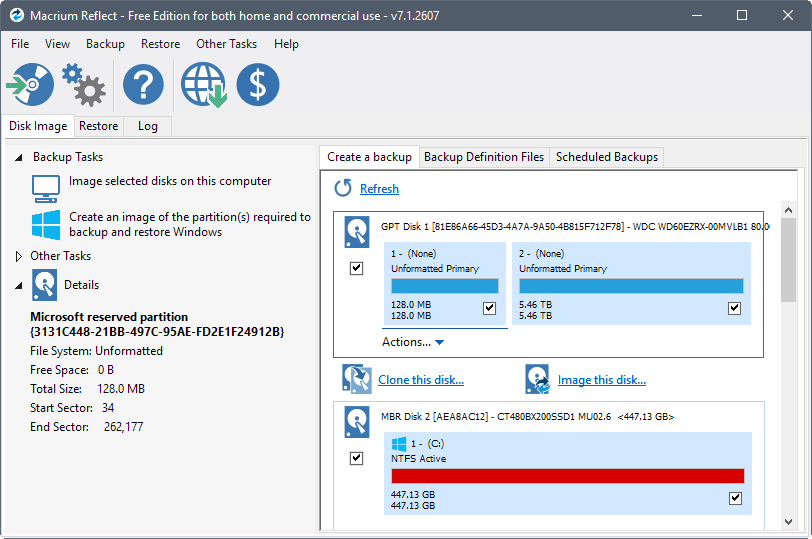
Macrium Reflect has a steeper learning curve because it does more at the disk and system level.
The interface needs to accommodate physical disks, partitions, backup definitions, schedules, images, restore operations, cloning, rescue media, and other system-recovery functions.
None of this makes Macrium badly designed.
It simply means the software expects more from the user.
You need to understand concepts such as:
- Full backups
- Incremental backups
- Differential backups
- Disk images
- Partitions
- Retention rules
- Backup destinations
- Rescue media
- Cloning
For someone who regularly manages computers, these options are useful.
For someone who simply deleted Wedding Photos and wants the folder back, they are unnecessary.
Interface Winner: EaseUS
EaseUS wins for simplicity.
Macrium wins for control.
For the average home user facing immediate data loss, EaseUS is much easier to understand.
Deleted File Recovery
This is one category where there is a clear winner.
EaseUS wins.
EaseUS Data Recovery Wizard is specifically built to search storage devices for deleted files.
When a file is deleted from a traditional hard drive, the underlying information may remain physically present until new data overwrites its storage sectors.
EaseUS can scan for that information.
Macrium works differently.
If you created a Macrium backup before deleting the file, restoring it can be easy. You can access the relevant backup and retrieve the older copy.
That is actually preferable to file carving because you are recovering a known-good backup rather than reconstructing deleted information.
But if no backup exists, Macrium’s advantage disappears.
Deleted File Winner: EaseUS
If the file has already been deleted and you have no backup, EaseUS is the correct tool.
If the file exists in yesterday’s Macrium backup, use Macrium instead.
RAW Partition Recovery
A RAW partition is another situation where EaseUS has the obvious advantage.
Windows normally recognizes common file systems such as NTFS, FAT32, and exFAT. If the file-system structure becomes badly damaged, Windows may display the partition as RAW.
The storage device exists.
Your files may still exist.
But Windows cannot correctly understand how the data is organized.
EaseUS RAW Recovery
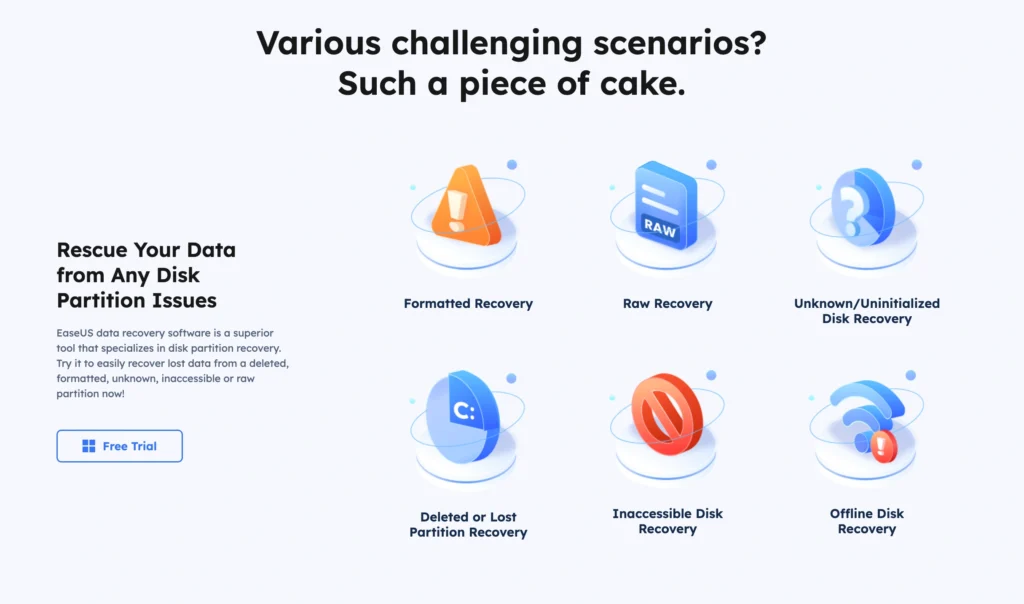
EaseUS can scan RAW storage for recoverable data.
When enough file-system metadata survives, the application may be able to reconstruct useful filenames and directory structures.
When that information is unavailable, deeper scanning can identify files using recognizable signatures.
For example, EaseUS may identify:
- JPEG images
- PNG images
- MP4 videos
- MOV files
- PDF documents
- DOCX documents
- XLSX spreadsheets
- ZIP archives
- Audio files
The drawback is that signature-based recovery may not preserve original filenames or folder structures.
That is normal.
If the metadata describing D:\Work\Client A\Invoice.xlsx is destroyed, the software may find the Excel file itself without knowing its original path.
Macrium and RAW Drives
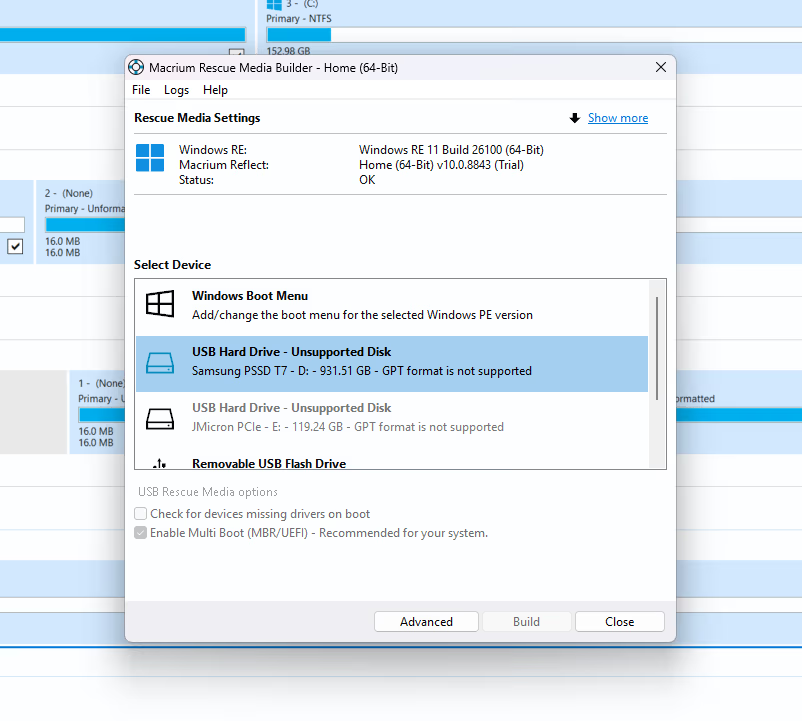
Macrium is not primarily designed to perform the same type of file carving on an already-damaged RAW partition.
Its strength comes into play if you created an image before the file system became corrupted.
Instead of trying to reconstruct damaged files, you can restore a known-good image.
That is a much cleaner solution.
But it requires preparation.
RAW Recovery Winner: EaseUS
For a drive that is already RAW and has no backup:
EaseUS wins easily.
For a drive protected by a recent Macrium image, restoring the image may be safer and more complete than attempting file recovery.
Disk Imaging and Backup
Now the comparison reverses.
Macrium Reflect is built around disk imaging.
A disk image creates a restorable representation of a drive or selected partitions. Instead of protecting only individual files, it can protect the complete system state.
That is extremely useful.
Imagine your system contains:
- Windows 11
- Microsoft Office
- Adobe applications
- Browser profiles
- Business software
- 300GB of personal files
- Custom application settings
A normal file backup may preserve your documents.
A complete system image can preserve much more.
Full Backups
A full image contains all selected data at the time the backup runs.
It provides a strong recovery baseline but consumes more storage than subsequent incremental backups.
Incremental Backups
Incremental backups store changes since the relevant previous backup.
This can significantly reduce backup time and storage requirements.
Macrium’s incremental capabilities are one of the reasons the product appeals to users who want regular automated protection rather than occasional manual backups.
Differential Backups
Differential backups record changes relative to a previous full backup.
They generally become larger as more information changes, but restoration can be simpler than working through a long incremental chain.
Backup Winner: Macrium Reflect
This is not close.
Macrium Reflect wins backup and disk imaging.
EaseUS has separate products such as EaseUS Todo Backup for this job, but Data Recovery Wizard itself is not a direct Macrium Reflect replacement.
Disk Cloning
Disk cloning is another major Macrium strength.
Suppose you have a 500GB SSD and purchase a new 2TB SSD.
You do not necessarily want to reinstall Windows.
You want your existing system transferred to the new drive.
Macrium Reflect can clone the source disk to the destination disk, including the relevant Windows partitions and system information.
Once completed correctly, the replacement drive can take over as the primary system disk.
Cloning is useful when:
- Upgrading an SSD
- Replacing an aging HDD
- Migrating Windows
- Moving to larger storage
- Replacing a potentially unreliable disk
EaseUS offers cloning through other products in its software ecosystem, but again, this is not the core purpose of Data Recovery Wizard.
Cloning Winner: Macrium Reflect
Macrium wins.
If your main goal is SSD migration rather than recovering deleted files, Macrium is the more appropriate product in this comparison.
Bootable Rescue Media
Both products have capabilities related to situations where Windows no longer starts, but their objectives differ.
EaseUS uses bootable recovery options to help retrieve important files from a computer that cannot boot normally.
That can be extremely useful if your first priority is saving documents, photographs, videos, and project files before attempting major repairs.
Macrium Rescue Media is more focused on restoring a protected system.
You can boot into the recovery environment and restore a previously created image even if the installed copy of Windows is completely unusable.
This makes Macrium particularly strong for disaster recovery.
A Windows installation can be badly corrupted, but if your backup image and rescue environment are healthy, you have a route back to a working system.
Rescue Media Winner: Macrium
EaseUS’s approach is excellent for rescuing missing files.
Macrium’s approach is better for rescuing the entire computer.
For complete disaster recovery, Macrium wins.
SSD Failure: Which Is Better?
This depends on when you act.
If your SSD has already failed and you never created a backup, EaseUS may be worth trying if the drive remains detectable.
But SSD recovery is complicated by TRIM.
Modern SSDs can clear deleted blocks internally after receiving TRIM commands. Once the original information is gone, data recovery software cannot magically reconstruct it.
EaseUS cannot bypass this limitation.
Neither can Macrium.
Macrium’s advantage is preventing you from depending on SSD recovery in the first place.
If a recent disk image exists on another storage device, you can replace the failed SSD and restore your system.
That is far better than hoping deleted or inaccessible blocks remain recoverable.
SSD Protection Winner: Macrium
For prevention, Macrium wins decisively.
For attempting recovery after data loss without a backup, EaseUS wins by default.
EaseUS File Repair Features
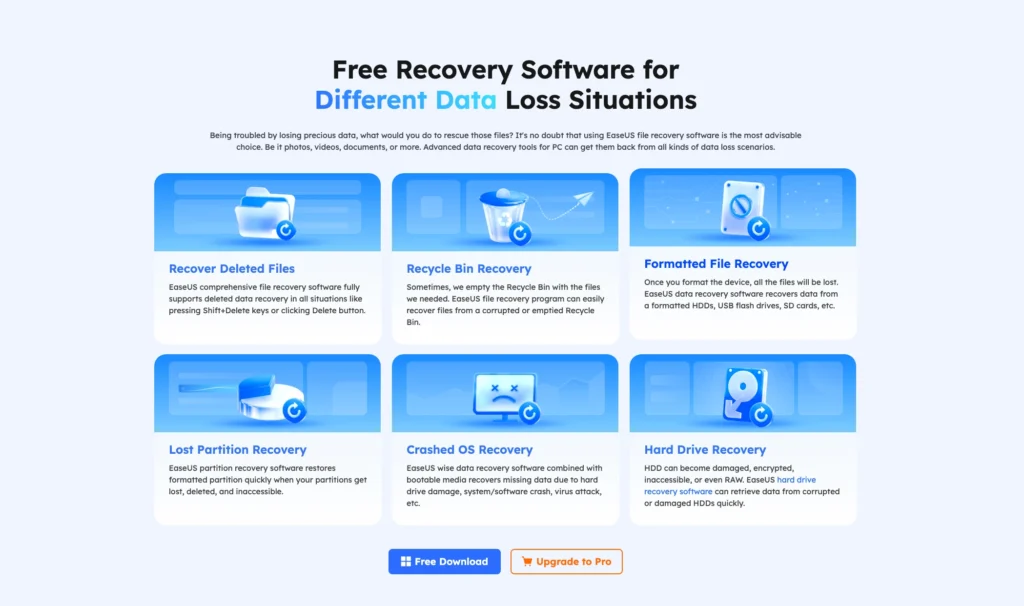
Recovering a file does not guarantee it will work.
Large videos are particularly problematic.
Imagine recovering a 5GB MP4 file from a formatted external drive. EaseUS may find the file’s signature and reconstruct it, but some of its original blocks may be missing or damaged.
The resulting video may refuse to play.
EaseUS includes repair functionality for certain corrupted video, photo, and document files in its paid recovery feature set.
This can be useful for content creators recovering:
- Camera footage
- Drone video
- MP4 recordings
- MOV footage
- JPEG photographs
- Office documents
Repair has limits.
If half of a video has physically been overwritten, no repair algorithm can recreate the original missing footage perfectly.
But when enough valid structure remains, repair tools can sometimes turn an unusable recovered file into something useful.
Macrium does not compete directly here because its objective is to restore the intact backed-up version rather than repair a reconstructed deleted file.
NAS and Network Recovery
EaseUS also offers NAS recovery capabilities.
This can help users dealing with deleted or inaccessible information on supported network-attached storage environments.
NAS recovery is significantly more complicated than recovering a USB flash drive because the system may involve multiple disks, RAID configurations, Linux-based file systems, and proprietary NAS software.
EaseUS’s dedicated focus on this area is therefore valuable.
Macrium can protect systems and data using backup strategies involving network storage, but that is a different use case.
Again, the distinction is simple.
EaseUS tries to recover information after it disappears.
Macrium tries to make sure a recoverable copy already exists somewhere else.
EaseUS vs Macrium Pricing
Comparing pricing directly is slightly misleading because the applications solve different problems.
EaseUS Data Recovery Wizard Pro for Windows commonly offers several licensing periods. Standard pricing has generally been around $69.95 for one month, $99.95 for one year, and $149.95 for lifetime access, although promotions can change the checkout price.
EaseUS also provides a free edition that can recover a limited amount of data. It advertises up to 2GB, although unlocking the complete allowance may involve additional conditions.
Macrium Reflect’s current consumer offering is centered on Reflect X Home, with licensing and subscription options depending on the package being purchased. Macrium has moved away from the old assumption that Reflect is simply a permanently free home backup tool, so anyone remembering older Reflect Free versions should check the current edition structure before choosing it.
| Pricing Factor | EaseUS Data Recovery Wizard | Macrium Reflect |
|---|---|---|
| Free Option | Limited data recovery | Current availability differs from older Reflect Free |
| Paid Product | Yes | Yes |
| Short-Term Recovery License | Yes | Not its main pricing approach |
| Lifetime Option | Available for EaseUS Pro | Depends on current Macrium licensing |
| Primary Value | Recovering already-lost files | Preventing and recovering from system failure |
| Best Purchase Case | Data-loss emergency | Ongoing backup protection |
The important question is not which application costs $10 or $20 less.
It is what you are paying to accomplish.
Paying $70 to EaseUS can make sense if it recovers an irreplaceable project that was never backed up.
Paying for Macrium makes sense if it prevents that emergency from becoming a disaster in the first place.
EaseUS Pros and Cons
Pros
- Excellent deleted-file recovery
- Strong formatted-drive recovery
- RAW partition recovery
- Beginner-friendly interface
- Deep scanning
- File previews
- Good filtering tools
- NAS recovery capabilities
- Crashed-PC recovery
- Video repair
- Photo and document repair
- Limited free recovery available
Cons
- Paid recovery can be expensive
- Does not replace a proper backup system
- Cannot guarantee recovery after overwriting
- SSD TRIM can make files unrecoverable
- Deep scans can return huge numbers of files
- Disk cloning and full backup require other EaseUS products
Macrium Reflect Pros and Cons
Pros
- Excellent disk imaging
- Strong Windows backup capabilities
- Full system recovery
- Disk cloning
- Incremental backups
- Differential backups
- Bootable rescue media
- Bare-metal recovery
- Useful scheduling and retention controls
- Excellent SSD migration capabilities
- Strong option for protecting Windows PCs before failure
Cons
- Not a direct deleted-file recovery application
- Cannot recover an old file if no relevant backup exists
- More complicated than EaseUS
- Some features require technical knowledge
- Overkill for someone who only wants to recover one deleted folder
- Current licensing is less simple than the older Reflect Free era
EaseUS vs Macrium: Category Winners
| Category | Winner |
|---|---|
| Deleted File Recovery | EaseUS |
| Formatted Drive Recovery | EaseUS |
| RAW Partition Recovery | EaseUS |
| File Preview | EaseUS |
| Video Repair | EaseUS |
| Photo Repair | EaseUS |
| NAS Data Recovery | EaseUS |
| Beginner Friendliness | EaseUS |
| System Backup | Macrium |
| Disk Imaging | Macrium |
| Incremental Backup | Macrium |
| Differential Backup | Macrium |
| Disk Cloning | Macrium |
| SSD Migration | Macrium |
| Bare-Metal Restore | Macrium |
| Disaster Prevention | Macrium |
| Whole-PC Recovery | Macrium |
Who Should Choose EaseUS?
Choose EaseUS Data Recovery Wizard when the damage has already happened and you do not have a usable backup.
It is the better choice if you accidentally deleted important files, formatted the wrong storage device, lost a partition, have an external HDD showing as RAW, need to scan a memory card, or want to rescue individual files from inaccessible storage.
It is also easier for beginners.
You do not need to understand backup chains, disk images, retention policies, or cloning. You identify where your files disappeared and let the application scan that location.
For photographers, video creators, students, home users, and small businesses facing immediate data loss, that simplicity can be extremely valuable.
Who Should Choose Macrium?
Choose Macrium Reflect if your main objective is making sure data loss does not turn into a full system disaster.
It is particularly suitable for Windows users who want regular system images, scheduled backups, SSD cloning, incremental protection, and the ability to restore an entire computer after storage failure.
Macrium also makes much more sense for someone upgrading hardware.
If you want to replace an old SSD with a larger model while preserving Windows, applications, settings, and data, Macrium’s cloning capabilities are far more relevant than EaseUS Data Recovery Wizard.
For technically comfortable home users, IT workers, professionals, and businesses, Macrium provides the stronger preventive strategy.
Final Winner: EaseUS or Macrium?
There is no responsible way to declare one universal winner because EaseUS Data Recovery Wizard and Macrium Reflect solve different stages of the same problem.
EaseUS wins when data is already missing.
If you accidentally deleted a folder this morning, formatted an SD card, lost a partition, or discovered an external drive has become RAW, EaseUS is the tool I would choose between these two. Its scanning engine, file previews, filters, RAW recovery, and file repair features are built specifically for that situation.
Macrium wins when you are planning ahead.
If you want a reliable backup strategy, complete system images, scheduled incremental backups, SSD cloning, rescue media, and the ability to restore a Windows installation after catastrophic failure, Macrium Reflect is clearly the better product.
In practical terms, the best setup is not actually EaseUS versus Macrium.
It is Macrium before data loss and EaseUS after unexpected data loss when no usable backup exists.
Macrium should reduce the number of situations where you ever need EaseUS.
That is the key difference.
Best for deleted or formatted file recovery: EaseUS Data Recovery Wizard
Best for backup, cloning, and complete disaster recovery: Macrium Reflect
Overall winner for data recovery: EaseUS
Overall winner for data protection: Macrium
If the only copy of an important file exists on one drive, neither product should make you comfortable. Create a backup before you need recovery software. Once a drive starts failing, the best recovery tool in the world is still less reliable than a healthy backup created yesterday.