
Losing important data rarely happens at a convenient time. A folder gets deleted by mistake, an SD card suddenly becomes unreadable, or an external hard drive asks to be formatted even though it contains years of files. At that point, the question is not whether you need a recovery tool. The question is which one you can trust with the recovery attempt.
EaseUS Data Recovery Wizard and AOMEI FastRecovery are two Windows-focused options aimed at making data recovery accessible without requiring forensic-level knowledge. Both can recover deleted files, scan formatted drives, work with common file systems, and search removable storage. Their basic goals are similar, but the experience is not.
EaseUS is the more mature and polished recovery platform. Its biggest strengths are its guided workflow, advanced recovery scenarios, file previews, RAW recovery, NAS support, and repair capabilities for certain damaged files. AOMEI FastRecovery takes a simpler approach and can be attractive when price and straightforward Windows recovery matter more than having every advanced feature.
After comparing their recovery methods, supported storage devices, RAW partition capabilities, usability, pricing, and additional features, EaseUS is the stronger overall recovery application, but AOMEI still makes sense for a specific type of user.
EaseUS vs AOMEI: Quick Comparison
| Feature | EaseUS Data Recovery Wizard | AOMEI FastRecovery |
|---|---|---|
| Overall Rating | 9/10 | 8.2/10 |
| Best For | Advanced and everyday recovery | Affordable Windows recovery |
| Windows Support | Excellent | Excellent |
| macOS Version | Yes | Primarily Windows-focused recovery |
| Deleted File Recovery | Excellent | Very Good |
| Formatted Drive Recovery | Excellent | Very Good |
| RAW Partition Recovery | Excellent | Very Good |
| NTFS Support | Yes | Yes |
| FAT32 Support | Yes | Yes |
| exFAT Support | Yes | Yes |
| External HDD/SSD | Yes | Yes |
| USB Recovery | Yes | Yes |
| SD Card Recovery | Yes | Yes |
| NAS Recovery | Yes | More limited |
| Crashed PC Recovery | Yes | Recovery options depend on configuration |
| File Preview | Yes | Yes |
| Deep Scan | Yes | Yes |
| File Repair Features | Strong | More limited |
| Beginner Friendliness | Excellent | Very Good |
| Best Overall Choice | Winner | Good alternative |
The specifications tell only part of the story. In practice, the biggest difference is how much assistance each program provides when the recovery situation becomes complicated.
Interface and Ease of Use
Data recovery software has a difficult design problem. It needs to expose enough information to help users find their files without overwhelming someone who does not know the difference between a partition table and a file system.
EaseUS handles this problem particularly well.
EaseUS Data Recovery Wizard Interface
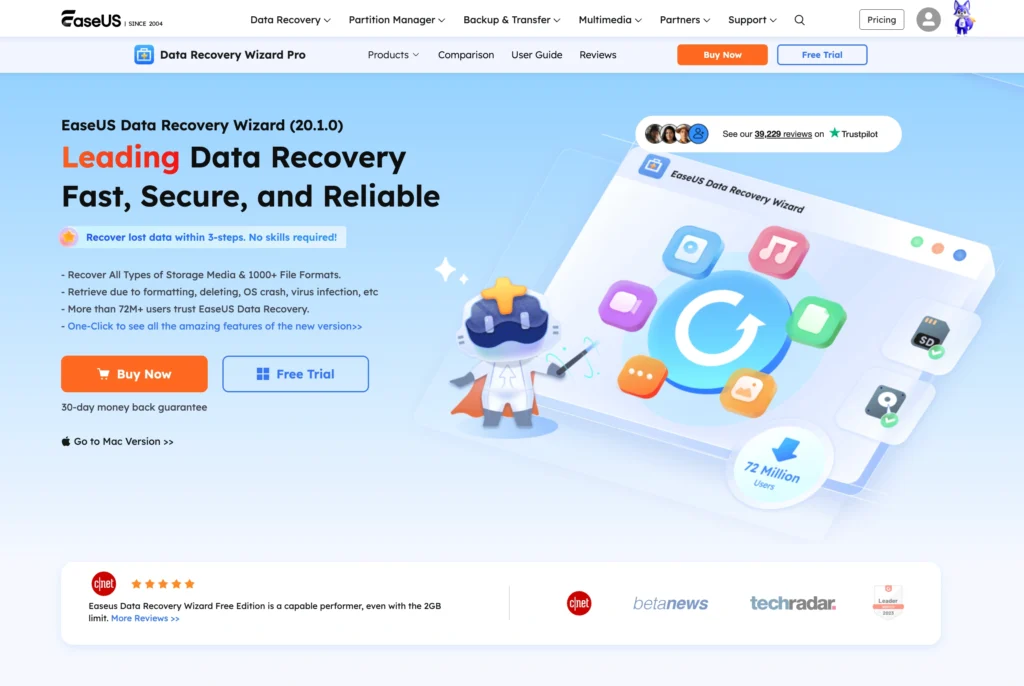
The word “Wizard” in the product name describes the experience accurately. EaseUS tries to guide users through recovery rather than forcing them to configure a long list of technical parameters.
The main screen focuses on storage locations. Internal partitions, external drives, removable storage, and other available recovery targets are displayed clearly. You choose where the missing files were located and begin scanning.
From there, EaseUS handles most of the technical work.
The scan results can be narrowed by file type, size, date, name, and other available information. This becomes important when a deep scan produces thousands or even hundreds of thousands of files.
EaseUS also lets you preview many supported file formats before recovery. This is not just a convenience feature. It is one of the most useful parts of any recovery application because a filename appearing in scan results does not automatically mean the file is healthy.
The overall workflow is polished enough that someone with limited technical knowledge can realistically use it.
AOMEI FastRecovery Interface

AOMEI FastRecovery also keeps the recovery process approachable. The software is built around selecting a drive or location, running a scan, reviewing the results, and recovering selected files.
The interface is clean and does not require extensive technical knowledge. Users can browse discovered content and filter results to reduce the amount of information on screen.
Where AOMEI differs is refinement.
EaseUS feels like a product that has spent years optimizing the recovery workflow. Small things such as the organization of scan results, recovery categories, advanced scenarios, and filtering make the process feel more complete.
AOMEI is not difficult to use. In fact, its simplicity can be an advantage for ordinary deleted-file recovery. It simply does not feel quite as mature once you move beyond straightforward recovery jobs.
Interface Winner: EaseUS
AOMEI is perfectly usable, but EaseUS wins the interface category.
It manages to provide advanced recovery capabilities without making the application intimidating. That balance matters when the user is already stressed about missing files.
Quick Scan vs Deep Scan
Both applications use scanning methods designed to handle different levels of data loss.
A quick recovery process is generally most effective when a file was recently deleted and the original file-system metadata remains available. A deeper scan becomes necessary when that metadata is missing, damaged, or no longer points correctly to the original files.
EaseUS Scanning
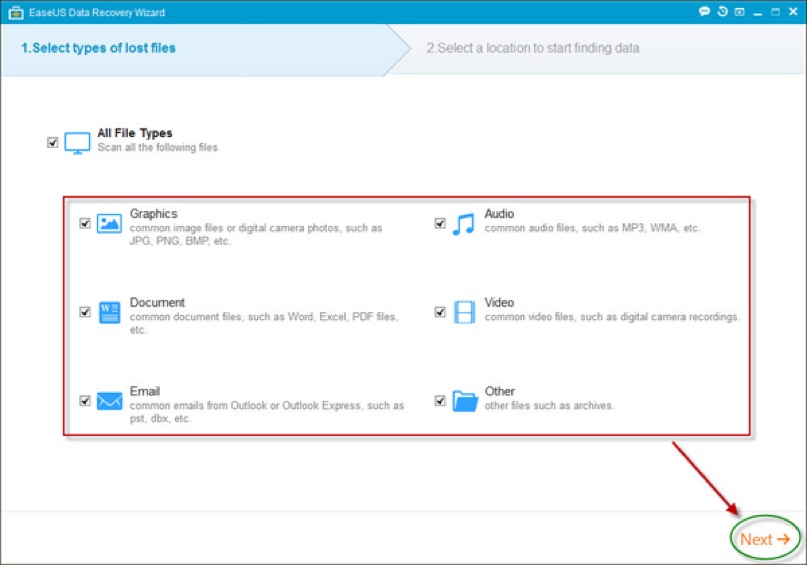
EaseUS begins searching for lost information while presenting results as they become available. For recently deleted files, useful results can appear without waiting for a complete deep analysis of the entire drive.
The deeper scanning process becomes more important after formatting, partition loss, or file-system corruption. EaseUS can look beyond normal directory information and identify files using recognizable signatures.
This allows the software to locate common formats such as photographs, videos, documents, archives, and audio even when their original directory structure is gone.
The downside is predictable. Deep scanning can generate an enormous number of results.
EaseUS partly solves this with filters and previews.
AOMEI Scanning
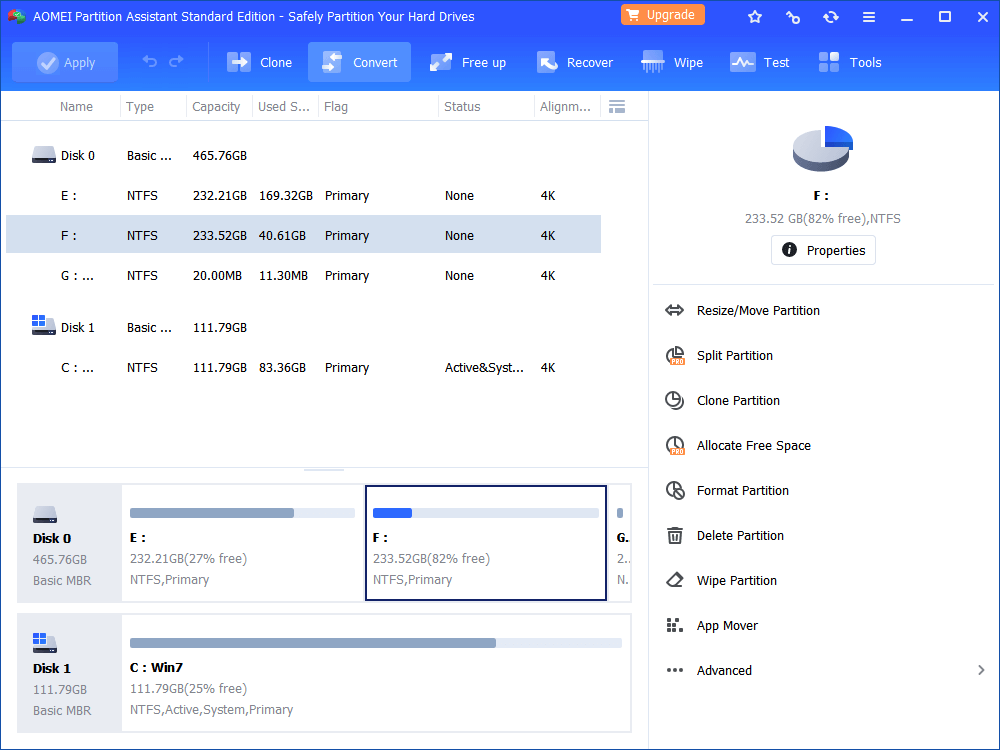
AOMEI FastRecovery uses a similar strategy. Its scanning engine can search for deleted data and perform deeper analysis when normal file-system information is insufficient.
For standard accidental deletion, the experience is competitive. Recently removed documents, photographs, and other files can often be identified without making the user configure complicated recovery parameters.
Deeper recovery also allows AOMEI to search formatted or damaged storage.
The difference becomes more noticeable in difficult recovery scenarios. EaseUS provides a more developed environment for sorting through complicated scan results and dealing with unusual recovery situations.
Scanning Winner: EaseUS
For simple deleted files, the difference is relatively small.
For complex scans, EaseUS has the advantage because the scanning engine is supported by stronger filtering, preview, and recovery-management tools.
File System and Device Support
Most ordinary Windows users will encounter NTFS, FAT32, and exFAT.
NTFS dominates internal Windows storage, while FAT32 and exFAT are commonly used on memory cards, USB drives, and external storage.
Both EaseUS and AOMEI cover these common recovery targets well.
EaseUS supports a broad range of file systems and storage devices, including Windows-oriented formats and additional file systems used by other platforms. Its separate Mac offering also makes it more suitable for people working across Windows and Apple environments.
AOMEI FastRecovery is more naturally positioned as a Windows recovery product. For a Windows desktop, laptop, USB stick, memory card, or external HDD, that may be all you need.
If your storage environment is more complicated, EaseUS provides more flexibility.
File System Winner: EaseUS
For standard NTFS and exFAT recovery, both applications are capable.
EaseUS wins because of its broader platform and advanced storage support.
RAW Partition Recovery
RAW recovery is one of the best tests of serious recovery software.
When Windows reports a partition as RAW, it generally means Windows can detect the storage device but cannot properly understand the file system.
You might connect an external drive and receive a message saying the disk needs to be formatted before it can be used.
Formatting immediately is usually the wrong move if the drive contains important data.
EaseUS RAW Recovery
EaseUS is particularly strong in this situation.
The software can scan a RAW partition for recognizable files even when the original file-system information is damaged.
If the original metadata is still partially available, EaseUS may recover filenames and folder information. If the structure has been destroyed, it can fall back on file signatures.
Signature recovery is powerful but imperfect.
You might successfully recover a PDF while losing its original filename. A photograph may return without its original folder. A video might be detected but remain corrupted because part of its underlying data was overwritten.
No consumer recovery application can completely solve those problems.
EaseUS does, however, make the resulting data relatively easy to inspect and organize.
AOMEI RAW Recovery
AOMEI FastRecovery can also search lost, formatted, or damaged partitions and identify recoverable files.
For an ordinary external HDD that suddenly becomes inaccessible, AOMEI is worth testing before assuming the files are gone.
Its deep recovery capabilities can locate data even when the original directory structure is no longer available.
EaseUS still has the edge when the situation becomes messy. Its recovery ecosystem, filtering, preview tools, and support for more advanced scenarios make it better suited to a badly damaged logical volume.
RAW Recovery Winner: EaseUS
EaseUS wins RAW recovery.
AOMEI can handle RAW and formatted storage, but EaseUS is the product I would try first when the file system itself is badly damaged.
Deleted and Formatted File Recovery
Accidental deletion is considerably easier to deal with than severe partition corruption, provided you act quickly.
When Windows deletes a file, the underlying data may remain on the storage device until new information overwrites it.
That is why the first rule of data recovery is to stop using the affected drive.
Suppose you accidentally delete a 30GB project folder containing Word files, photographs, MP4 videos, PDFs, and ZIP archives. If you immediately run recovery from another drive, both EaseUS and AOMEI have a reasonable environment in which to work.
EaseUS makes finding individual files particularly easy because of its filtering and preview system. AOMEI performs well in the same type of straightforward recovery job.
Formatting changes the equation.
A quick-formatted drive may still contain substantial recoverable information, but the original file-system records can be damaged or replaced. Deep scanning and signature recognition become more important.
This is where EaseUS begins pulling ahead.
AOMEI remains competitive, but EaseUS offers the stronger overall recovery workflow when the original file structure has disappeared.
HDD vs SSD Recovery
Neither product should be judged without discussing SSDs.
Recovering deleted information from a traditional hard disk and recovering it from a modern SSD are not the same thing.
SSDs commonly use TRIM. When files are deleted, the operating system can tell the SSD that the relevant blocks are no longer needed. The drive can then clear or recycle those blocks internally.
Once the original information is physically gone, EaseUS cannot recover it.
AOMEI cannot recover it either.
This is an important point because users sometimes interpret an unsuccessful SSD recovery as proof that the software is bad.
It may simply mean there is nothing left to recover.
If important information is deleted from an SSD, stop using the device as quickly as possible.
Do not install the recovery application onto that SSD. Ideally, run recovery from another disk or computer and save recovered files to separate storage.
EaseUS Advanced Recovery Features
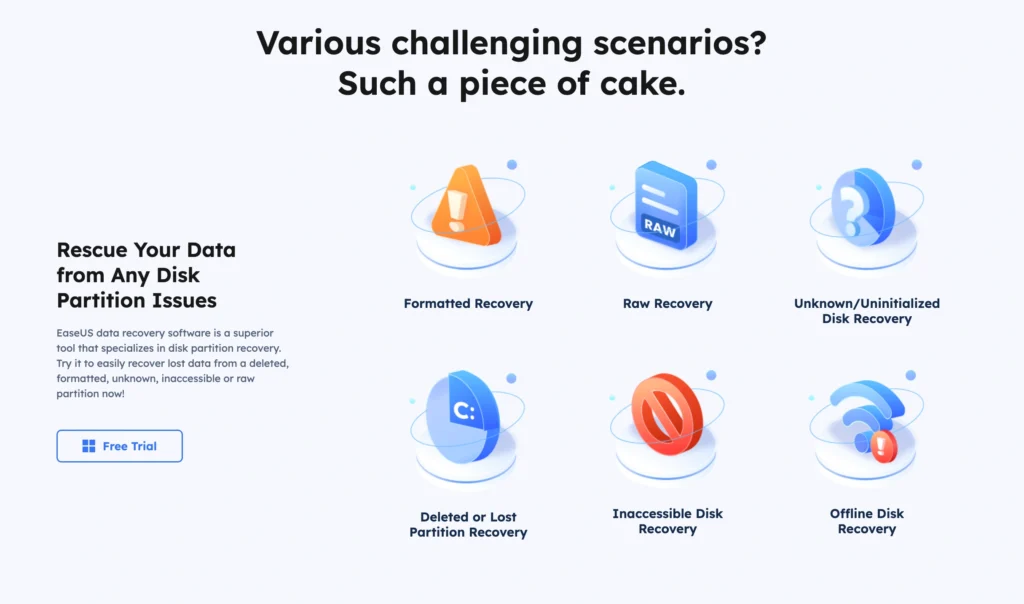
EaseUS’s strongest argument is not one individual recovery algorithm. It is the range of recovery situations covered by the application.
NAS Recovery
EaseUS includes dedicated NAS recovery capabilities.
That makes it relevant to small businesses, creators, offices, and advanced home users storing information on network-attached storage.
NAS recovery can become significantly more complicated than restoring a deleted Word document from a USB stick. RAID configurations, multiple drives, file-system damage, and network storage operating systems all add complexity.
EaseUS’s support in this area gives it a clear advantage over simpler consumer recovery tools.
Crashed PC Recovery
EaseUS also offers options for recovering information from computers that no longer boot correctly.
This matters because reinstalling Windows can overwrite exactly the information you are trying to save.
Being able to approach recovery without first reinstalling the operating system is therefore extremely useful.
Video, Photo and Document Repair
Another advantage is file repair.
Sometimes a file can be recovered but not opened correctly.
This happens frequently with large videos because a file may have been fragmented across different physical areas of the drive. If only part of the data survives, simply reconstructing the file entry is not enough.
EaseUS includes repair capabilities for certain corrupted videos, photos, and documents in its paid recovery feature set.
These tools cannot recreate information that has been completely overwritten, but they can help in cases where enough valid file structure remains for repair.
AOMEI’s Broader Software Ecosystem
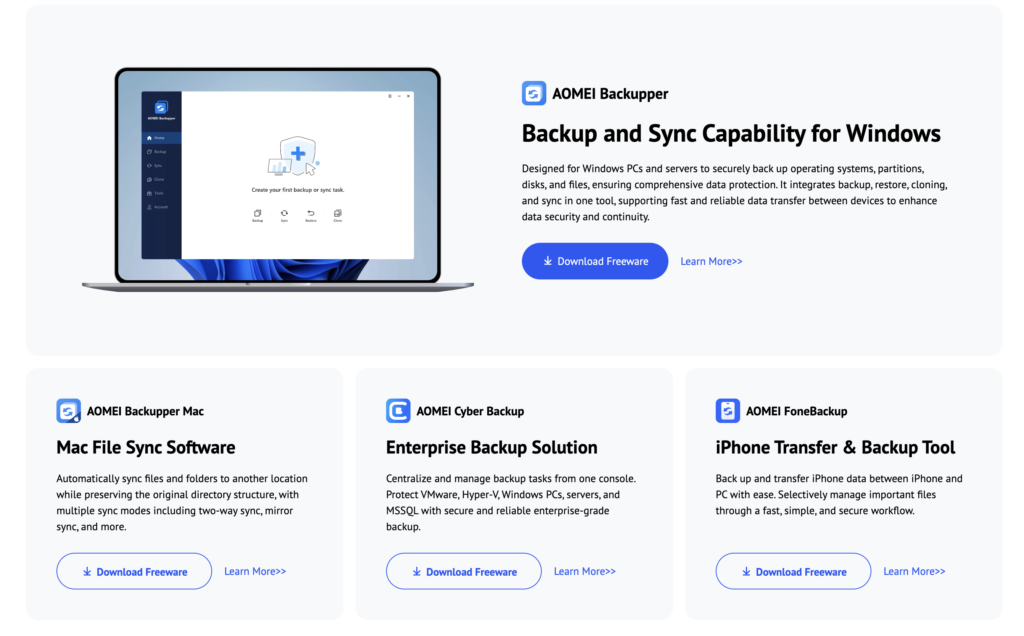
AOMEI takes a slightly different approach as a company.
FastRecovery is its dedicated recovery product, but AOMEI is also widely known for storage management, partitioning, cloning, and backup software.
That broader ecosystem can be useful if you already use other AOMEI products.
For example, users may combine recovery with separate AOMEI tools for:
- Disk partition management
- System backup
- Disk cloning
- Operating system migration
- Drive management
- Bootable recovery environments
The important distinction is that these are not necessarily all features built directly into FastRecovery itself.
EaseUS also operates a large ecosystem of backup, partition, migration, and utility software, so neither company is limited to data recovery.
For the specific task of recovering lost files, however, EaseUS Data Recovery Wizard feels more comprehensive.
Free Version: EaseUS vs AOMEI
Free recovery allowances are important because scanning for free is not the same thing as recovering for free.
Many recovery programs happily show you thousands of recoverable files and then ask for payment when you click the Recover button.
EaseUS Data Recovery Wizard Free provides a limited amount of actual recovery. EaseUS currently advertises up to 2GB, although part of that allowance may require completing its promotional sharing step.
That is enough to recover a meaningful amount of small data.
Two gigabytes could cover hundreds of documents and photographs.
It will not do much for someone trying to recover 200GB of 4K video.
AOMEI FastRecovery also offers a free edition, but its exact free recovery allowance and promotional conditions can vary by current version and offer. The important thing is to check the actual recovery allowance shown by the software rather than assuming that a free download means unlimited free restoration.
For either program, the free version should first be used as a diagnostic tool.
Run the scan.
Find your missing files.
Preview several of them.
Only then consider buying a license.
Pricing and Value for Money
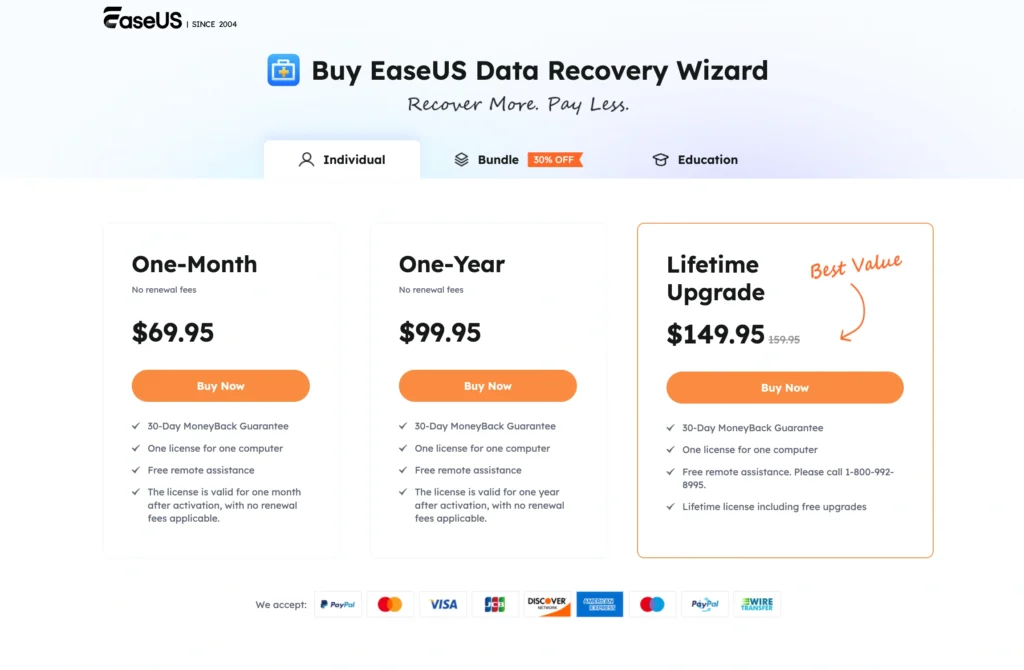
Pricing is another area where the answer is less simple than looking at the cheapest number.
EaseUS Data Recovery Wizard Pro for Windows is typically offered with short-term, annual, and lifetime licensing. Standard pricing has commonly placed the one-month option around $69.95, the annual license around $99.95, and lifetime access around $149.95, although discounts can change what you actually pay.
AOMEI FastRecovery is positioned competitively and can be particularly attractive when promotional or lifetime licensing is available.
The decision therefore depends on why you are buying recovery software.
If you have one emergency today and never expect to use the application again, paying for a short recovery period can make more sense than buying permanent access.
If you regularly work with cameras, SD cards, external HDDs, USB storage, client projects, or multiple computers, lifetime licensing becomes much easier to justify.
| Pricing Factor | EaseUS | AOMEI |
|---|---|---|
| Free Version | Yes | Yes |
| Paid Recovery | Unlimited under applicable license | Unlimited under applicable license |
| Short-Term Option | Yes | Depends on current plan |
| Annual Licensing | Yes | Available depending on edition |
| Lifetime Option | Yes | Often a major selling point |
| Overall Value | Good, but relatively expensive | Potentially better for budget users |
EaseUS Pros and Cons
Pros
- Excellent Windows recovery
- Very beginner-friendly interface
- Strong RAW partition recovery
- Quick and Deep scanning
- Good file previews
- Excellent filtering
- Formatted-drive recovery
- NAS recovery
- Crashed-PC recovery
- Video repair capabilities
- Photo and document repair features
- Mac version available
- Mature recovery workflow
Cons
- More expensive than many alternatives
- Deep scans can return huge numbers of results
- Free recovery is limited
- Full free allowance may involve additional conditions
- Advanced features may be unnecessary for basic deleted-file recovery
AOMEI FastRecovery Pros and Cons
Pros
- Simple interface
- Strong Windows focus
- Deleted-file recovery
- Formatted-drive recovery
- RAW partition scanning
- Deep Scan capabilities
- File previews
- Supports common storage devices
- Good choice for USB and SD card recovery
- Attractive pricing potential
- Fits well with other AOMEI storage products
Cons
- Less mature recovery workflow than EaseUS
- Advanced recovery features are not as extensive
- NAS recovery is not as strong a selling point
- Less compelling for Mac users
- File repair capabilities are more limited
- Complex recovery jobs may require more manual sorting
EaseUS vs AOMEI: Category Winners
| Category | Winner |
|---|---|
| Overall Recovery | EaseUS |
| Ease of Use | EaseUS |
| Windows Support | Tie |
| Mac Support | EaseUS |
| Deleted Files | Tie |
| Formatted Drives | EaseUS |
| RAW Partitions | EaseUS |
| File Preview | Tie |
| Filtering | EaseUS |
| NAS Recovery | EaseUS |
| Crashed PC Recovery | EaseUS |
| Video Repair | EaseUS |
| Budget-Friendly Pricing | AOMEI |
| Basic Home Recovery | AOMEI |
| Advanced Recovery | EaseUS |
| Overall Winner | EaseUS Data Recovery Wizard |
Who Should Choose AOMEI?
AOMEI FastRecovery makes sense if your requirements are straightforward.
If you accidentally deleted files from a Windows PC, USB drive, SD card, or external HDD and want a reasonably simple recovery program, AOMEI can do the job without making the process unnecessarily complicated.
It becomes particularly interesting if you can purchase a competitively priced lifetime license. Someone who only needs conventional Windows recovery may not benefit from paying extra for advanced NAS recovery, file repair, or cross-platform functionality.
AOMEI is therefore a sensible choice for budget-conscious Windows users.
It is also worth considering if you already use other AOMEI products for backup, cloning, or partition management.
Who Should Choose EaseUS?
EaseUS is better suited to users who want the most complete recovery package of these two products.
The difference is most noticeable when recovery stops being simple.
If a partition has become RAW, an external drive has been formatted, a NAS has lost files, Windows no longer boots, or recovered videos are corrupted, EaseUS gives you more tools for dealing with the problem.
Its interface also makes these capabilities unusually approachable.
That makes EaseUS particularly suitable for photographers, content creators, small businesses, IT workers, and users who regularly handle external storage.
You pay more.
But you get more recovery capability.
Final Winner: EaseUS Data Recovery Wizard
EaseUS Data Recovery Wizard wins this comparison.
AOMEI FastRecovery is not a weak recovery application. For ordinary Windows users trying to restore accidentally deleted files, it can be a perfectly sensible and potentially cheaper choice. Its straightforward interface and support for common Windows storage devices cover the situations many home users will actually encounter.
EaseUS pulls ahead when the recovery problem becomes more complicated.
Its stronger RAW recovery workflow, NAS support, crashed-PC recovery, extensive filtering, file previews, and repair capabilities make it more versatile. It also has a dedicated Mac offering, which matters if your storage environment includes both Windows and Apple systems.
The decision ultimately comes down to what kind of problem you are preparing for.
Choose AOMEI FastRecovery if you want affordable, straightforward Windows file recovery.
Choose EaseUS Data Recovery Wizard if you want the stronger overall recovery toolkit and are willing to pay more for it.
There is one final point that matters more than either recommendation. Recovery software should never replace a backup strategy. If a file exists in only one location, it is already at risk.
And when data loss does happen, stop using the affected storage device immediately. Every new write can overwrite deleted information that EaseUS, AOMEI, or any other recovery program might otherwise have been able to restore.