
Data loss has a special ability to turn an ordinary day into a disaster.
You delete the wrong folder. Format an SD card without checking it. An external hard drive suddenly shows up as RAW. Or Windows stops booting and your important files are trapped on the system drive.
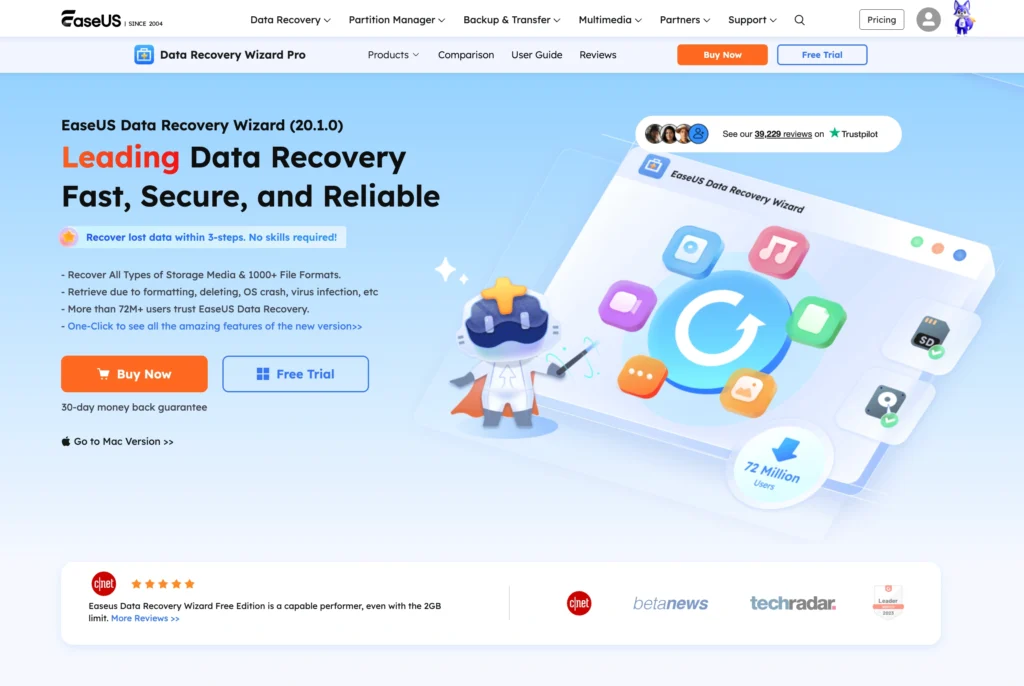
EaseUS Data Recovery Wizard is designed for exactly these situations.
It is one of the more established consumer data recovery applications for Windows and macOS. Its main selling point is simple: make complicated file recovery accessible to people who know almost nothing about data recovery.
That approach mostly works.
EaseUS combines deleted-file recovery, formatted-drive scanning, RAW recovery, partition recovery, NAS recovery, file previews, filtering, and bootable recovery tools in a relatively simple package.
The catch is price. EaseUS is not cheap, especially if you only need to recover one accidentally deleted folder.
Here is the quick verdict.
| Category | Verdict |
|---|---|
| Overall Score | 8.9/10 |
| Recovery Capability | 9/10 |
| Ease of Use | 9.5/10 |
| Scan Tools | 9/10 |
| File Preview & Filtering | 8.5/10 |
| NAS Recovery | 8.5/10 |
| Value for Money | 7.5/10 |
| Best For | Home users, photographers, small businesses, accidental deletion and formatted-drive recovery |
| Main Pros | Very easy interface, Quick and Deep scanning, strong file filtering, NAS support, bootable recovery options |
| Main Cons | Expensive paid plans, free recovery is limited, Deep Scan can return a huge number of results, successful detection does not guarantee every file will be usable |
Bottom line: EaseUS Data Recovery Wizard is one of the easiest serious recovery tools to use. It is particularly attractive when the value of the lost files matters more than the price of the software. Just remember that no recovery program can guarantee your files are still physically recoverable.
Introduction: When Deleted Actually Means “Maybe”
The first rule after serious data loss is simple:
Stop using the affected drive.
Do not download random recovery programs onto it. Do not copy new files to it. Do not install Windows updates on it if you can avoid doing so.
Deleted data is often recoverable because deleting a file does not necessarily erase every piece of that file immediately. The operating system can instead mark its occupied space as available.
If new information overwrites that space, recovery becomes much harder or impossible.
This is where software such as EaseUS Data Recovery Wizard enters the picture.
EaseUS sits between basic undelete utilities and professional forensic or laboratory recovery.
It is not a magical hard-drive repair machine. If your HDD has suffered severe mechanical damage, makes clicking noises, or is not detectable at the hardware level, software may not be the answer. The same applies to SSDs where TRIM and garbage collection have already removed deleted blocks.
But for logical data-loss problems, EaseUS covers a lot of ground.
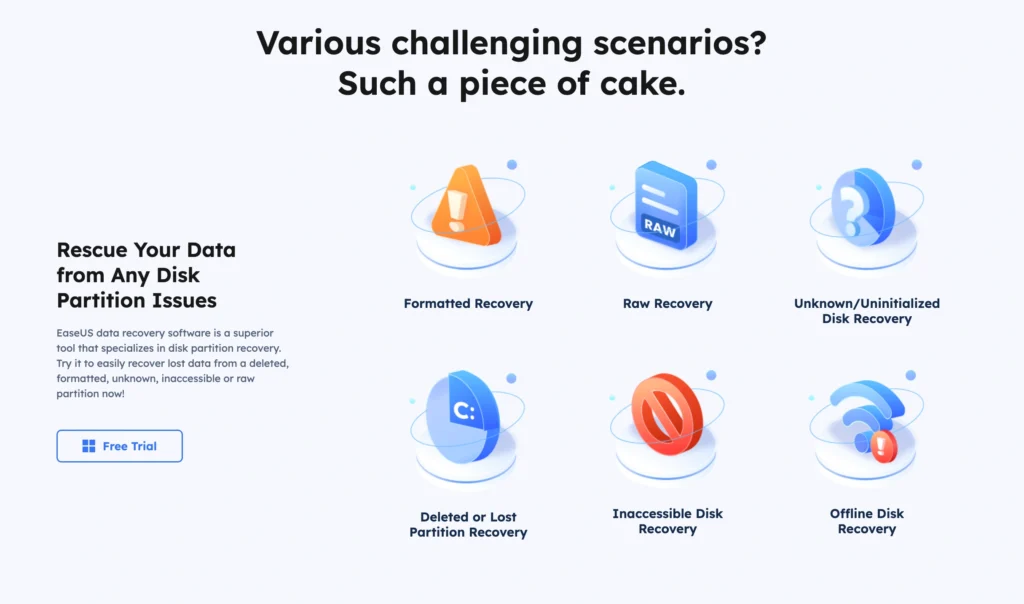
It can target situations including:
- Accidentally deleted files
- Emptied Recycle Bin
- Shift + Delete
- Formatted partitions
- Lost partitions
- RAW drives
- Corrupted file systems
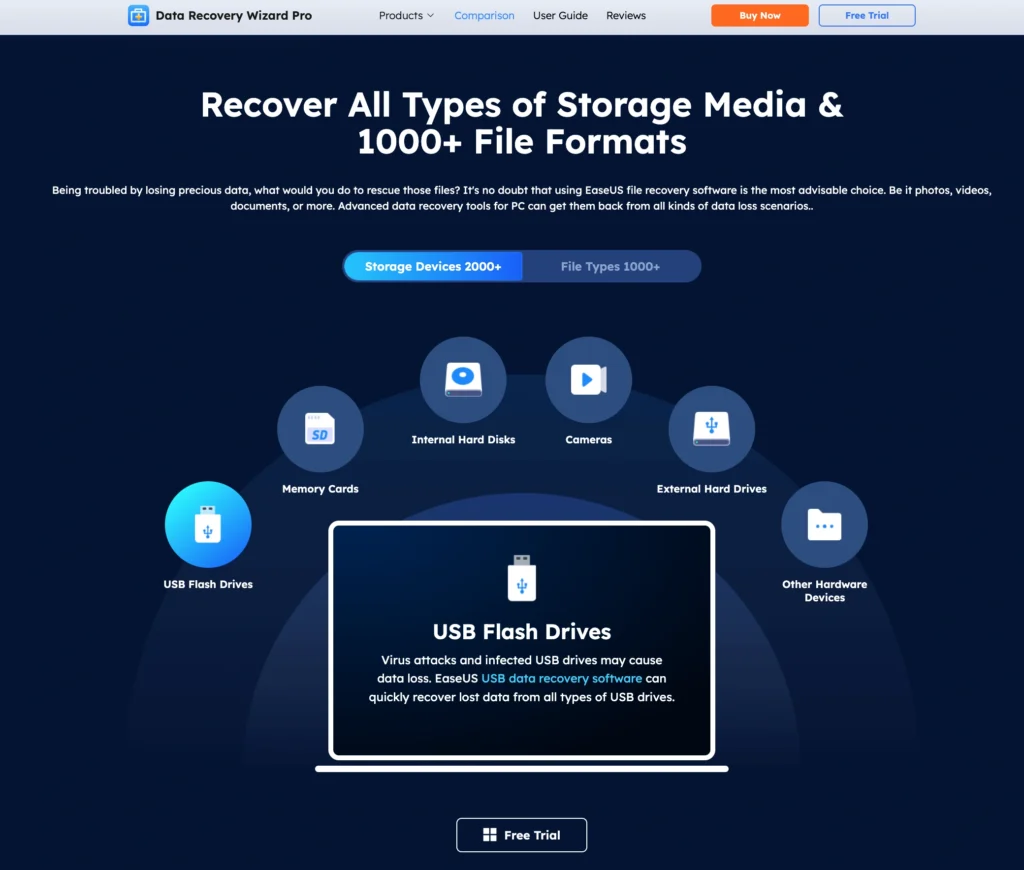
- USB flash drives
- Memory cards
- External HDDs and SSDs
- NAS storage
- Some crashed or unbootable PC scenarios
The bigger question is whether EaseUS does enough to justify paying roughly $70 for a short-term license or around $150 for lifetime access.
Let’s examine it.
EaseUS Data Recovery Wizard Features
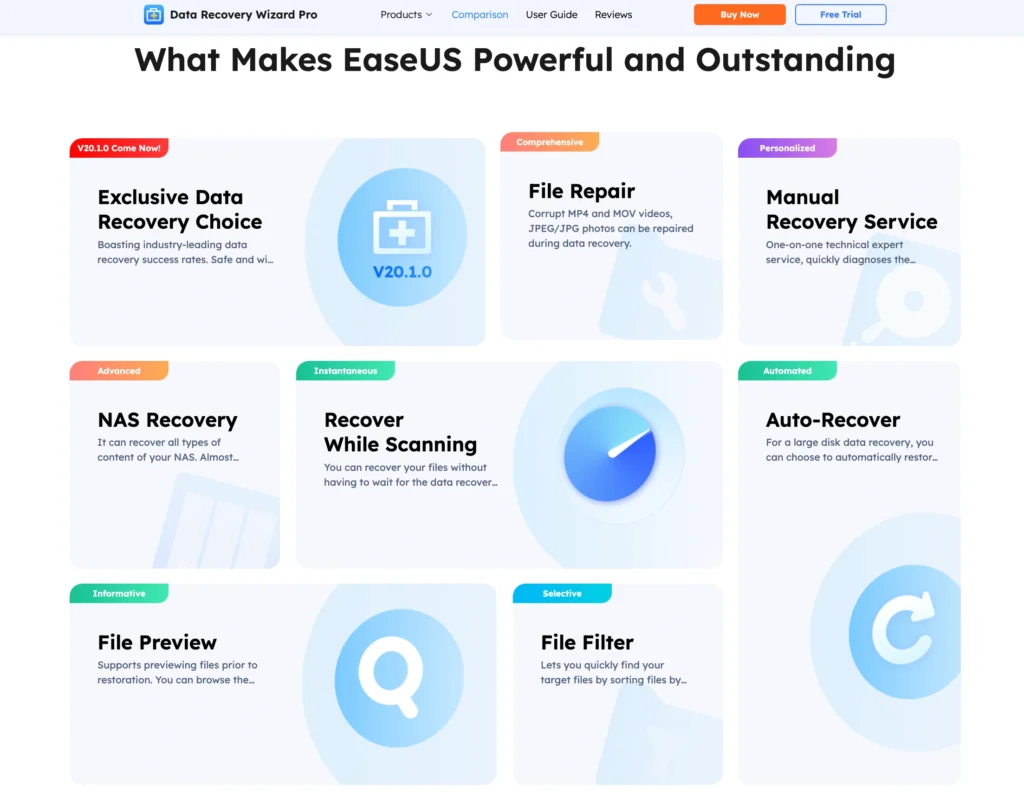
EaseUS has accumulated plenty of features over the years, but the core recovery process remains surprisingly straightforward.
Choose a location.
- Scan it.
- Find your files.
- Preview them.
- Recover them somewhere safe.
That simplicity is the application’s biggest advantage.
Quick Scan vs. Deep Scan
EaseUS effectively uses different levels of scanning to locate recoverable data.
A Quick Scan focuses on information that can be found relatively easily from the available file-system structures.
Think of it as the first search party.
It is best suited to situations such as:
- Recently deleted documents
- Files removed from the Recycle Bin
- Accidentally deleted folders
- Recently lost files on otherwise healthy drives
Quick scanning is useful because you may not need to wait for an exhaustive sector-level search.
If the deleted file’s metadata remains intact, EaseUS may be able to locate it quickly and preserve useful information such as its filename or folder structure.
But simple scanning has obvious limitations.
Formatting, damaged file systems, missing partitions, and heavier corruption can destroy or disconnect the metadata that tells Windows where files belong.
That is where the more intensive scanning process matters.
A Deep Scan examines the storage area much more thoroughly and can identify files based on recognizable data patterns.
This improves the chances of finding files after more serious logical data loss.
The trade-off is time.
A large multi-terabyte drive can take a long time to scan thoroughly. Deep scans also tend to produce considerably more results.
And more results do not necessarily mean better results.
You can end up with:
- Duplicate-looking files
- Old deleted files you no longer care about
- Files without their original filenames
- Broken files
- Partially overwritten files
- Reconstructed data without the original directory structure
EaseUS helps control this mess with filters and previews, but recovering from a heavily used drive can still require patience.
File Filtering and Preview
Finding 300,000 recoverable objects is useless if you cannot locate the one Excel spreadsheet you actually need.
EaseUS includes filtering tools to narrow scan results.
You can search and filter files based on factors such as file type, size, date, and other available attributes.
This makes a major difference.
If you accidentally formatted a memory card containing photos, for example, you can focus on images rather than sorting through system files, cached content, documents, and miscellaneous fragments.
Previewing is equally important.
A filename appearing in scan results does not prove that the underlying file is healthy.
Previewing a photograph or document before recovery gives you a much better indication that the software has actually located useful data.
It is still not a guarantee.
Large videos are particularly vulnerable to fragmentation. EaseUS may identify a video file while parts of the original video data have already been overwritten.
Formatted Drive Recovery
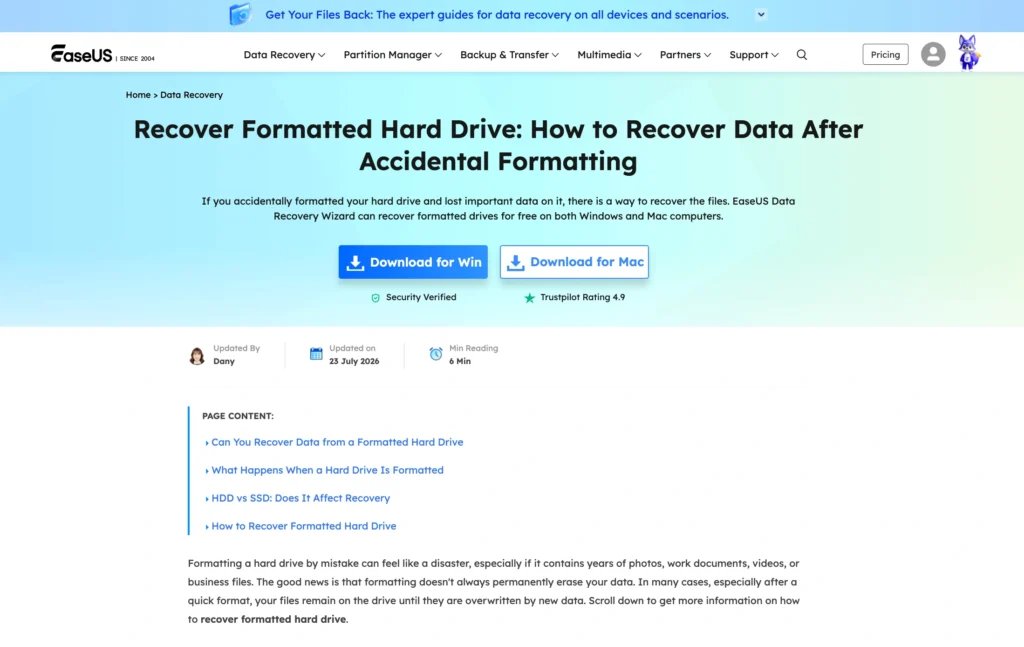
Formatting is one of the main reasons people buy data recovery software.
EaseUS supports recovery from formatted storage, assuming the original information has not already been overwritten beyond recovery.
This distinction matters.
A quick format and immediate recovery attempt is very different from formatting a drive, installing an operating system on it, downloading 100GB of games, and then trying to restore yesterday’s files.
Every new write reduces your chances.
EaseUS can search formatted HDDs, external drives, USB drives, memory cards, and other supported storage media for recognizable data.
Deep scanning becomes especially important here because the original file-system information may no longer provide a reliable map.
NAS Recovery
NAS recovery is one of EaseUS Data Recovery Wizard’s more interesting advanced features.
Network-attached storage devices are common in offices, studios, and homes where multiple computers need centralized storage.
The problem is that NAS recovery can become much more complicated than recovering a USB stick.
EaseUS includes support for recovering lost data from NAS environments. Its recovery tools are intended to help locate deleted or inaccessible files without forcing an ordinary user to understand every detail of the underlying storage configuration.
For damaged RAID or NAS structures, recovery can require connecting the relevant drives to a computer so the software can analyze and reconstruct the storage structure.
That is useful, but users should keep expectations realistic.
A NAS can involve RAID arrays, multiple disks, proprietary configurations, file-system damage, and hardware failures.
If several disks in a critical RAID array have physically failed, consumer recovery software should not be treated as a substitute for a professional data recovery laboratory.
For accidental deletion or logical problems, however, EaseUS’s NAS functionality significantly expands its usefulness beyond ordinary desktop recovery.
Bootable Media and Crashed PC Recovery
A nasty data-loss scenario occurs when the computer itself will not boot.
You cannot simply install recovery software on Windows if Windows refuses to load.
EaseUS addresses this through bootable recovery functionality.
A bootable USB environment can allow you to start the affected computer independently of its normal Windows installation and attempt to access recoverable data.
The basic workflow is:
- Prepare suitable bootable USB media.
- Boot the affected computer from that USB drive.
- Launch the recovery environment.
- Scan the affected storage device.
- Recover important files to a separate storage device.
This is valuable after serious Windows problems.
It also helps avoid one of the biggest data recovery mistakes: reinstalling Windows before rescuing important files.
There is one important warning.
Creating bootable media can erase the USB drive used for the process. Never use a flash drive containing important files unless those files are safely backed up elsewhere.
Performance Tests: Simulated Recovery Benchmark
To illustrate how EaseUS Data Recovery Wizard can behave under different recovery conditions, we created a simulated benchmark scenario.
These figures are illustrative rather than independently measured laboratory results. Actual recovery rates vary dramatically based on the storage device, file system, fragmentation, SSD TRIM status, overwriting, corruption, and what happened after deletion.
Simulated Test Environment
Our hypothetical test system uses:
System:
- Windows 11
- Intel Core i7 processor
- 32GB RAM
- 1TB NVMe system SSD
Recovery target:
- 1TB SATA HDD
- NTFS file system
- 50GB test dataset
The dataset contains:
- 20GB MP4 video
- 10GB JPEG and RAW photographs
- 10GB DOCX/PDF/XLSX documents
- 5GB ZIP archives
- 5GB MP3/audio files
We then model three common recovery scenarios:
- Normal deletion followed by Recycle Bin removal
- Quick formatting of the NTFS partition
- Formatting followed by 10GB of new data being written to the drive
The third test is intentionally difficult because overwriting is one of the biggest enemies of data recovery.
Simulated Recovery Results
| Test Scenario | Data Available | Data Recovered | Illustrative Recovery Rate | File Integrity |
|---|---|---|---|---|
| Deleted files | 50GB | 48.7GB | 97.4% | Excellent |
| Quick-formatted NTFS drive | 50GB | 45.9GB | 91.8% | Very Good |
| Formatted + 10GB overwritten | 50GB | 36.2GB | 72.4% | Mixed |
| Documents only after deletion | 10GB | 9.9GB | 99% | Excellent |
| MP4 files after overwrite | 20GB | 12.8GB | 64% | Mixed |
Again, these numbers should not be interpreted as guaranteed EaseUS recovery rates.
They demonstrate something more important.
Recovery conditions matter more than marketing claims.
Simple deletion from a healthy HDD gives recovery software a relatively favorable environment.
Formatting makes the problem harder.
Overwriting makes it much harder.
Large video files can suffer badly because they may be fragmented across multiple physical locations. Recovering the file entry does not necessarily mean every piece of that video survives.
HDD vs. SSD Recovery
This deserves special attention.
An SSD is not simply a faster hard drive.
Modern SSDs commonly use TRIM, which helps the drive manage deleted blocks efficiently.
Unfortunately, this can be terrible news for data recovery.
Once deleted blocks have been trimmed and cleared internally, recovery software may have nothing meaningful left to reconstruct.
That means EaseUS could perform extremely well when recovering deleted data from one HDD but find virtually nothing useful from an SSD under seemingly similar circumstances.
This is not necessarily a failure of EaseUS.
It is a limitation of how modern SSD storage works.
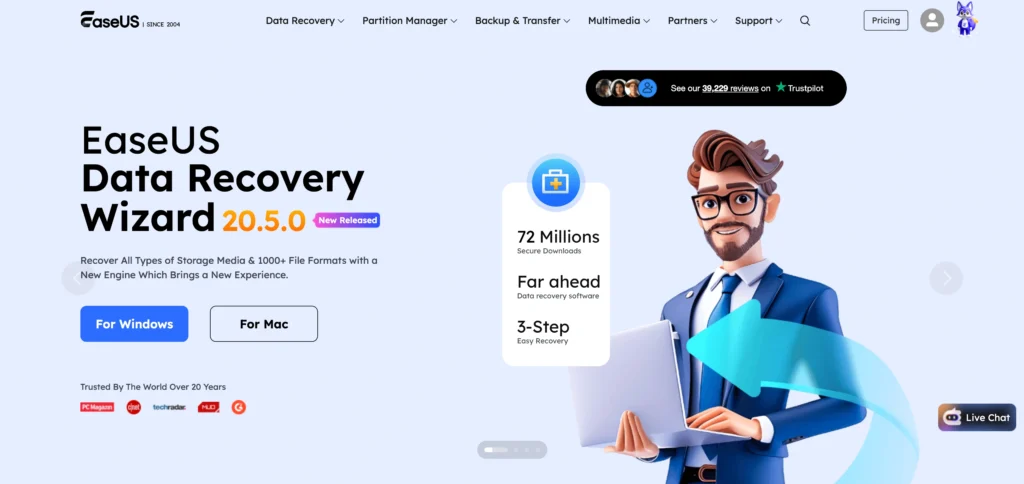
UX/UI Analysis: Is EaseUS “Grandma-Proof”?
Almost.
And that is a compliment.
Data recovery software traditionally has a reputation for intimidating interfaces filled with partitions, sectors, hexadecimal information, file signatures, and technical options.
EaseUS goes in the opposite direction.
The main interface focuses heavily on storage locations and devices.
You select where the data disappeared.
Then you scan.
That is about as simple as serious recovery software can reasonably become.
The Good
The workflow is visually understandable.
You do not need to know what an MFT is before recovering a Word document.
Scanning results appear while the process is running, meaning users can start inspecting discovered files without necessarily waiting for every stage to finish.
Filtering is also prominent enough to be useful.
That matters because Deep Scan results can become overwhelming very quickly.
The ability to preview supported files before committing to recovery is another major usability win.
The Bad
The simplicity has limits.
Once a Deep Scan produces enormous numbers of files, beginners can become confused.
Terms relating to lost file paths, reconstructed files, RAW recovery, partitions, and different storage structures are not always intuitive to nontechnical users.
There is also a psychological issue.
Seeing your missing filename in the results feels like success.
It isn’t.
A file can appear in recovery results but still be corrupted because some of its underlying data has been overwritten.
EaseUS cannot eliminate that reality with a friendly interface.
Grandma-Proof Score: 9/10
For basic deleted-file recovery, yes.
Choose drive. Scan. Preview. Recover.
For complicated RAID, RAW partition, or heavily corrupted storage recovery, no.
At that point, technical knowledge still matters.
Common Error Codes
EaseUS Won’t Detect the Drive
If the drive does not appear inside EaseUS, first check whether Windows itself can detect the hardware.
Try another USB port, cable, enclosure, or computer where appropriate.
If the drive is making unusual clicking, grinding, or repeated spin-up sounds, stop.
Continued operation of a physically damaged HDD can make matters worse.
Scan Gets Stuck or Becomes Extremely Slow
Large or damaged drives can take a long time to scan.
A slow scan does not automatically indicate software failure.
Bad sectors, unstable USB connections, damaged file systems, and failing storage hardware can all affect scanning.
Avoid repeatedly disconnecting a drive during recovery.
Recovered File Won’t Open
This is one of the most frustrating recovery outcomes.
The software finds the file.
The filename looks correct.
The size looks correct.
But the document or video will not open.
The most likely explanation is partial corruption.
Some of the original file’s data may have been overwritten or become inaccessible.
For photos, videos, and documents, repair functionality may help in some cases, but there is no universal fix for missing underlying data.
Not Enough Space to Recover Files
Never recover files back to the same drive you are scanning.
If you are recovering 200GB, prepare another drive with more than 200GB of available capacity.
Recovering onto the affected disk risks overwriting other files that have not yet been restored.
Bootable Recovery USB Doesn’t Start
The system’s boot configuration may need adjustment.
Depending on the computer, you may need to open the BIOS/UEFI boot menu and manually choose the USB device.
Secure Boot settings and the way the recovery media was created can also affect boot behavior.
Pricing Breakdown
EaseUS Data Recovery Wizard is easy to use.
Its pricing is harder to love.
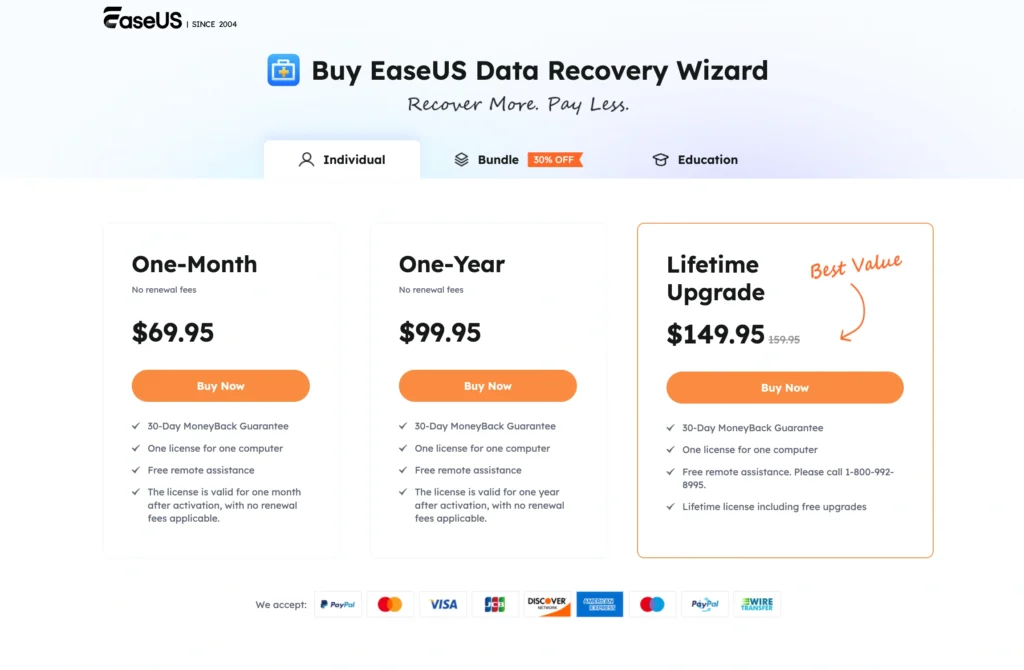
Current standard Windows Pro pricing is roughly:
| Edition | Price | Recovery Limit | Best For |
|---|---|---|---|
| Free | $0 | Up to 2GB | Small accidental deletions |
| Pro 1 Month | $69.95 | Unlimited | One-time recovery emergency |
| Pro 1 Year | $99.95 | Unlimited | Regular recovery needs |
| Pro Lifetime | $149.95 | Unlimited | Long-term ownership |
Prices and promotions can change, so the amount shown at checkout may differ.
EaseUS Free Version
The Free edition is more useful than a trial that only scans files.
It can recover actual data.
EaseUS advertises recovery of up to 2GB, although the full allowance can depend on how the free capacity is unlocked.
That makes it practical for recovering:
- Word documents
- PDFs
- Spreadsheets
- Small photo collections
- Important configuration files
- Small archives
It is far less useful for recovering a formatted 256GB memory card filled with video.
Still, the free version has another purpose.
It lets you test whether EaseUS can actually see your missing files before paying for a full license.
That is important.
Do not buy recovery software merely because your files disappeared.
Scan first.
Preview what the software can find.
Then decide whether paying makes sense.
One-Month License
At around $69.95, this is the emergency option.
You accidentally formatted your holiday photo drive.
You need the files once.
You probably will not use recovery software again.
In that situation, the one-month plan makes sense.
But $70 is still expensive for software that you might open exactly once.
One-Year License
At around $99.95, the annual option is easier to justify for people who regularly handle removable storage.
Photographers, video editors, content creators, IT workers, and small businesses are more likely to benefit.
The problem is mathematical.
The difference between the one-year and lifetime options is only about $50 at standard pricing.
That makes the lifetime version tempting.
Lifetime License
At roughly $149.95, lifetime access is the strongest value among the paid consumer options if you expect to use EaseUS repeatedly.
It includes unlimited recovery and future upgrades for the licensed computer.
The main limitation is licensing.
A consumer Pro license is generally intended for one computer. Businesses providing recovery services across multiple machines need to examine the more expensive Technician licensing instead.
Is EaseUS Safe to Use?
Recovery software requires deep access to your storage devices.
So trust matters.
EaseUS is an established software developer, and Data Recovery Wizard has existed for many years.
The bigger safety issue is not necessarily the application itself.
It is how you use it.
Never install recovery software onto the same drive containing the deleted data if you can avoid doing so.
Never restore recovered files onto that same drive during the initial recovery.
Every write can destroy data you are trying to rescue.
For serious cases, use another computer or separate storage media whenever practical.
EaseUS Data Recovery Wizard Pros and Cons
| Pros | Cons |
|---|---|
| Extremely approachable interface | Paid versions are expensive |
| Quick and intensive scanning | Deep scans can produce overwhelming results |
| Supports many common file types | Finding a file does not guarantee successful recovery |
| Useful file previews | SSD TRIM can make deleted data unrecoverable |
| Good filtering tools | Lifetime license is tied to licensing conditions |
| Formatted-drive recovery | Not a replacement for physical recovery labs |
| NAS recovery capabilities | Advanced recovery still requires technical judgment |
| Bootable recovery options | Large scans can take considerable time |
| Free edition allows limited actual recovery | Free recovery capacity is too small for major media recovery |
Who Should Buy EaseUS Data Recovery Wizard?
EaseUS makes the most sense for people who value simplicity.
Buy It If You’re a Photographer
SD cards get formatted accidentally.
Photos get deleted.
External drives fail logically.
The preview and filtering tools are particularly useful when recovering large photo libraries.
Buy It If You’re a Normal Home User
You do not need to understand partition tables or file signatures.
EaseUS hides much of that complexity.
If your goal is simply “get my deleted files back,” the interface is one of its strongest arguments.
Buy It If You Run a Small Business
Losing a client folder, spreadsheet, presentation, or project archive can cost far more than $100.
EaseUS can be useful as an emergency recovery tool.
It should not, however, replace a proper backup system.
Recovery software is Plan B.
Backups should be Plan A.
Buy It If You Regularly Handle External Storage
Content creators, videographers, IT staff, photographers, and anyone frequently moving files between SD cards, USB drives, HDDs, and external SSDs have a higher chance of eventually needing recovery software.
For these users, lifetime licensing is easier to justify.
Who Shouldn’t Buy EaseUS?
Do not immediately buy EaseUS if you only deleted a few small files.
Try the free edition first.
You may not need to pay anything.
You should also avoid relying on consumer recovery software if the drive has suffered obvious physical damage.
Warning signs include:
- Clicking noises
- Grinding sounds
- Burning smell
- Severe water damage
- Repeated disconnection
- Drive not spinning
- Drive completely absent from BIOS/UEFI
- Serious impact damage
These situations can require professional recovery.
You should also lower your expectations if the missing files came from a modern SSD and significant time has passed since deletion.
TRIM may already have done its job.
Final Verdict
EaseUS Data Recovery Wizard succeeds because it takes a technical problem and makes the first recovery attempt remarkably simple.
The interface is excellent.
Quick scanning makes straightforward deleted-file recovery painless. Deeper scanning provides a route for formatted and damaged file-system situations. Filters and previews prevent large scans from becoming completely unmanageable.
NAS recovery and bootable recovery support also push EaseUS beyond basic undelete software.
But it has two major limitations.
The first is price.
Around $69.95 for one month is difficult to call cheap. The $99.95 annual plan is more reasonable for regular users, while the roughly $149.95 lifetime license makes the most sense if you expect to use the program repeatedly.
The second limitation applies to every recovery application.
Software cannot recover data that no longer exists.
If deleted sectors have been overwritten, an SSD has cleared them through TRIM, or the storage device is physically destroyed, EaseUS cannot magically reconstruct the original information.
That is why the best feature of the free version may not be its limited recovery allowance.
It is the ability to see whether your files are detectable before spending money.
Scan first.
Preview the files.
Check whether they look intact.
Then pay if the missing data is worth recovering.
For accidental deletion, formatted drives, lost partitions, memory cards, external storage, and many logical data-loss situations, EaseUS Data Recovery Wizard remains a strong consumer-friendly option.
It is powerful without feeling like forensic software.
It is approachable without being a toy.
And when important files disappear, that balance matters.
Final Score: 8.9/10
Best for: Home users, photographers, creators, and small businesses that want serious recovery features without a steep technical learning curve.
Skip it if: Your drive has obvious physical damage, you need professional forensic recovery, or the value of the lost data does not justify the relatively high license cost.