
Losing an important file can happen surprisingly fast. You might accidentally empty the Recycle Bin, format the wrong USB drive, delete a project folder, or discover that an external hard drive is suddenly unreadable. In situations like these, data recovery software can sometimes locate files that are no longer visible through Windows or macOS.
EaseUS Data Recovery Wizard is one of the best-known recovery programs, but it is not the only option. Some users want a simpler free tool, while others need advanced partition recovery, support for Linux, or professional tools for damaged storage devices.
The right program also depends heavily on what happened to your data. Recovering recently deleted photos from an SD card is very different from trying to recover files from a corrupted or formatted partition.
This guide compares five popular file recovery options, including EaseUS itself as a benchmark, and explains their strengths, limitations, pricing approach, and ideal use cases.
Quick Comparison of the Best File Recovery Software
| Software | Platforms | Price | Ease of Use | Best Use Case |
|---|---|---|---|---|
| EaseUS Data Recovery Wizard | Windows, macOS | Free tier; paid licenses available | Very Easy | Beginners and general-purpose recovery |
| Disk Drill | Windows, macOS | Free/basic recovery options; paid Pro version | Very Easy | Everyday recovery with a polished interface |
| TestDisk & PhotoRec | Windows, macOS, Linux | Free and open source | Difficult | Technical users and partition/file recovery |
| Recuva | Windows | Free; paid Professional edition | Easy | Simple Windows file recovery |
| R-Studio | Windows, macOS, Linux | Paid, with multiple license options | Advanced | Professionals and complex recovery jobs |
Important: Prices, free recovery allowances, features, and licensing can change. Always check the software developer’s current terms before purchasing.
At-a-Glance Ratings
| Software | Ease of Use | Advanced Features | Beginner Friendly | Best For |
|---|---|---|---|---|
| EaseUS | 5/5 | 4/5 | Excellent | Most home users |
| Disk Drill | 5/5 | 4/5 | Excellent | Easy, visual recovery |
| TestDisk & PhotoRec | 2/5 | 5/5 | Limited | Free advanced recovery |
| Recuva | 4/5 | 3/5 | Very Good | Deleted Windows files |
| R-Studio | 2.5/5 | 5/5 | Moderate | Technicians and professionals |
5 Best File Recovery Software
1. EaseUS Data Recovery Wizard (Windows & Mac)
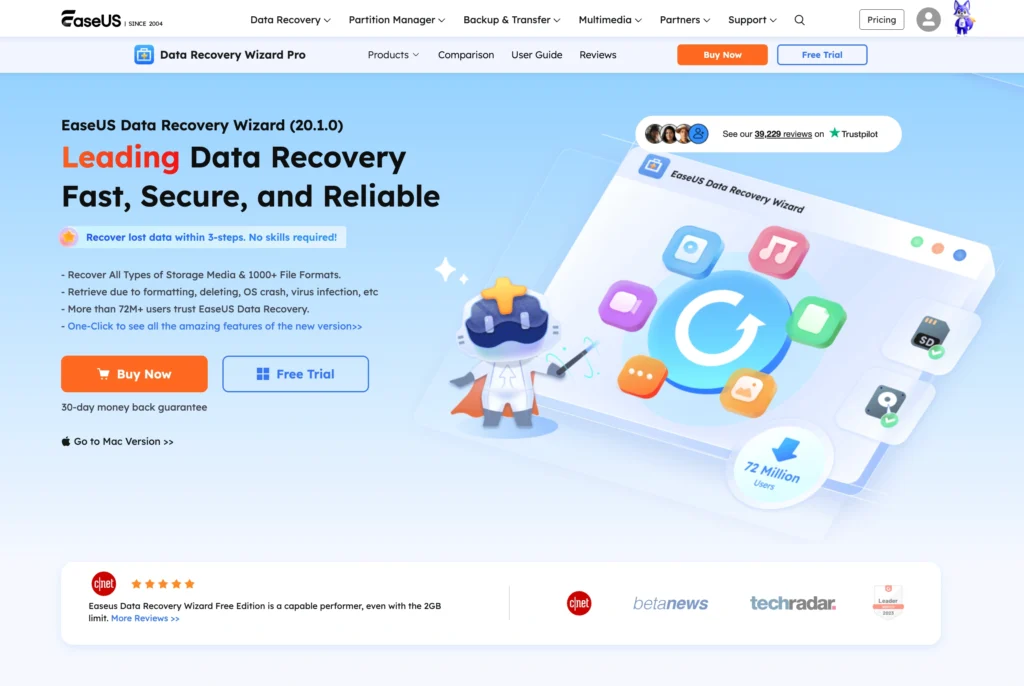
EaseUS Data Recovery Wizard remains one of the strongest reference points when comparing consumer data recovery programs. Its biggest advantage is that it turns what can be a complicated technical process into a relatively straightforward workflow.
You normally choose the drive or location where the missing files were stored, start a scan, inspect the results, select what you need, and recover the files to another location.
That simplicity makes EaseUS particularly attractive when you have never used recovery software before.
EaseUS can be useful in several common situations, including accidental deletion, formatting, lost partitions, emptied Recycle Bin or Trash, corrupted storage, and external-drive problems.
Its scanning system searches storage media for recoverable data and can often identify files that the operating system no longer lists normally.
Another useful feature is file filtering. Large storage devices can contain thousands or even millions of recoverable entries. Being able to narrow results by file type, location, name, or other attributes can save considerable time.
EaseUS also provides file previews for supported formats. This is important because seeing a filename in recovery results does not necessarily mean the underlying file is intact. Previewing a photo or document can provide additional confidence before recovery.
Key advantages:
- Very beginner-friendly interface
- Supports Windows and macOS
- Works with internal and external storage
- Deep scanning capabilities
- File filtering and search tools
- Preview support for many file types
- Suitable for deleted and formatted data
The primary downside is cost. Although EaseUS offers a free version or free recovery allowance depending on the current edition and platform, larger recovery jobs generally require a paid license.
There is also no guarantee that EaseUS, or any recovery software, can retrieve every lost file. Recovery success depends on factors such as whether the original data has been overwritten and the physical condition of the storage device.
Best for: Users who want an accessible, guided recovery experience without learning technical recovery commands.
2. Disk Drill Data Recovery (Windows & Mac)
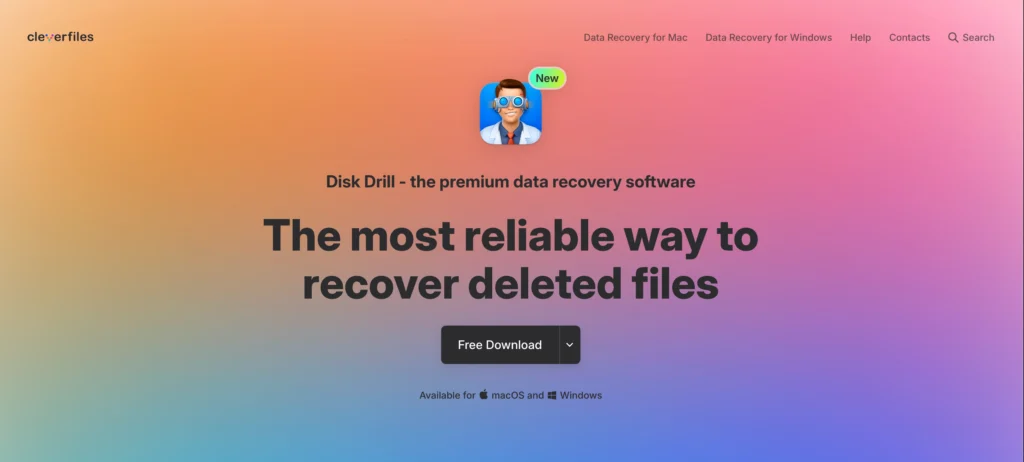
Disk Drill is one of the closest EaseUS competitors for ordinary Windows and Mac users.
Its strongest quality is usability. Disk Drill presents storage devices, partitions, scan results, and recoverable files through a clean visual interface. If EaseUS appeals to you because it makes recovery less intimidating, Disk Drill follows a similar philosophy.
The program can search for deleted files, lost files, formatted data, missing partitions, and files on external storage devices.
You begin by selecting a drive, running the available recovery scan, and then reviewing discovered files. Results can be categorized to make large scans easier to navigate.
Disk Drill also provides preview functionality for supported file types. For photos in particular, previews can be extremely useful because recovered files may have missing names or unusual filenames after a deep scan.
Another reason people consider Disk Drill is its collection of additional disk utilities. Available features differ between Windows and macOS, but the software has historically included tools related to storage monitoring, data protection, backups, and disk management.
Key advantages:
- Modern and intuitive interface
- Available for Windows and macOS
- Good file preview functionality
- Multiple recovery methods
- Supports numerous storage devices
- Helpful additional disk utilities
- Suitable for beginners
Disk Drill’s free recovery capabilities differ by platform and software version, so users should pay attention to the current limitations before starting a large recovery job.
Its paid version can also feel expensive if you only need to recover one accidentally deleted file.
Best for: Windows and Mac users who prioritize ease of use, visual navigation, and a polished interface.
3. TestDisk & PhotoRec (Windows & Mac)

TestDisk and PhotoRec are quite different from commercial tools such as EaseUS and Disk Drill.
They are free, open-source recovery utilities and have earned a strong reputation among technically experienced users.
TestDisk focuses primarily on partitions and disk structures. It can be particularly valuable when dealing with a lost partition, damaged partition table, or certain boot-related storage problems.
PhotoRec takes a different approach. Despite the name, it is not limited to photographs. It uses file signatures to identify and recover many different types of files directly from storage media.
This method can be useful when a file system has been severely damaged or formatted and normal directory information is unavailable.
The trade-off is usability.
TestDisk traditionally relies heavily on a text-based interface. PhotoRec is also more technical than consumer-oriented recovery programs, although companion interfaces and improvements can make some workflows easier.
Users accustomed to clicking through a graphical wizard may initially find these tools confusing.
Another limitation of signature-based recovery is that original folder structures and filenames may not always be preserved. You might successfully recover hundreds of files but then have to sort through them manually.
Key advantages:
- Completely free
- Open-source software
- Works on Windows, macOS, and Linux
- Powerful partition recovery capabilities
- Supports numerous file systems
- PhotoRec recognizes many file formats
- Useful when normal file-system recovery fails
TestDisk and PhotoRec make the most sense for users comfortable reading documentation and understanding basic storage concepts.
Best for: Advanced users who want free recovery software and do not mind a more technical workflow.
4. Recuva (Windows)
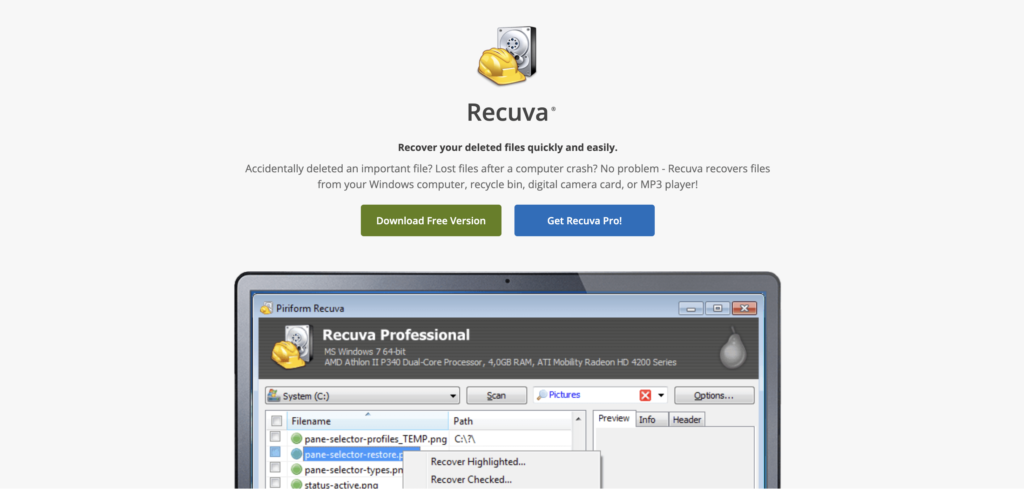
Recuva has long been one of the most recognizable free file recovery programs for Windows.
Compared with professional recovery suites, Recuva is relatively lightweight. Its primary purpose is straightforward: locate deleted files and give you an opportunity to restore them.
This simplicity is actually one of its biggest advantages.
If you accidentally deleted a Word document, photograph, video, ZIP archive, or other ordinary file from a Windows computer or removable drive, Recuva can be a sensible first tool to try.
The program offers a wizard that guides beginners through the recovery process. You can specify what type of file you are looking for and where it was originally stored.
Recuva also provides a Deep Scan option when the standard search does not locate the missing file. Deep scanning takes longer but examines the storage device more thoroughly.
One particularly useful feature is Recuva’s attempt to indicate the condition of discovered files. This can help you understand whether a file has a good chance of being recovered successfully.
Key advantages:
- Free version available
- Simple interface
- Lightweight installation
- Deep Scan option
- Good for common deleted files
- Supports removable storage
- Designed specifically for Windows
However, Recuva is less appropriate for complicated recovery jobs involving badly damaged file systems, sophisticated RAID configurations, or serious partition problems.
It is also Windows-only, immediately excluding Mac and Linux users.
Best for: Windows users who need a simple and inexpensive way to recover recently deleted files.
5. R-Studio (Windows, Linux, macOS)
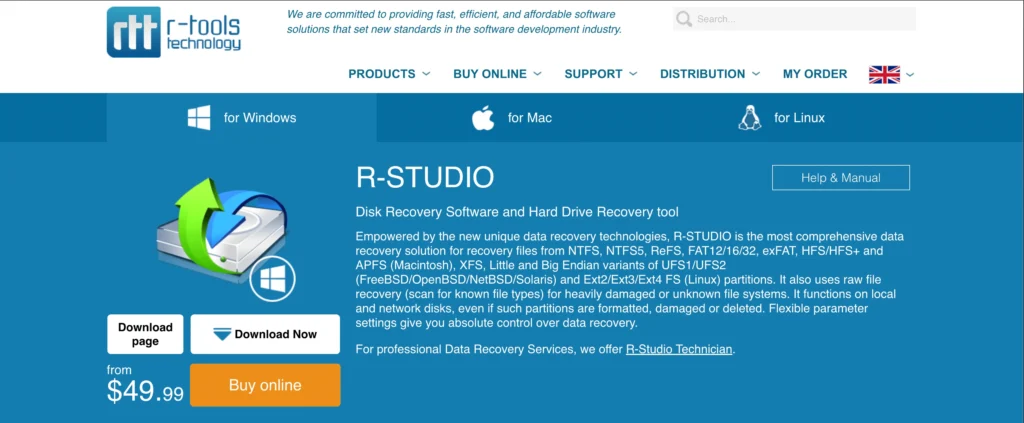
R-Studio sits at the more technical end of this comparison.
Despite its name, it should not be confused with the RStudio development environment used with the R programming language. R-Studio Data Recovery is a professional recovery application designed for advanced storage situations.
It supports Windows, macOS, and Linux, making it one of the most flexible options in this list.
R-Studio provides extensive control over scanning, partitions, file systems, disk images, and recovery parameters. It can also work with more complex storage scenarios than typical consumer recovery applications.
One major strength is support for disk imaging. Creating an image of a problematic drive allows recovery attempts to be performed against the image instead of repeatedly accessing the original storage device.
That can be valuable when a drive is unstable.
R-Studio is also known for advanced RAID-related capabilities, making it potentially useful for technicians, IT departments, and users dealing with multi-disk storage systems.
The disadvantage is obvious once you open the application: there is considerably more information on screen.
Users unfamiliar with sectors, partitions, file systems, disk images, or RAID parameters can find R-Studio overwhelming.
Key advantages:
- Windows, macOS, and Linux support
- Professional recovery features
- Disk imaging
- Strong file-system support
- RAID recovery capabilities
- Detailed scan controls
- Suitable for complex recovery scenarios
R-Studio is therefore not necessarily the best program for someone who simply deleted five holiday photos yesterday. But for technically difficult recovery jobs, its additional control can be extremely valuable.
Best for: IT professionals, technicians, advanced users, and complicated recovery jobs.
Comparison of Our Top Picks
Choosing between these programs becomes easier when you identify the problem you are actually trying to solve.
| Situation | Recommended Option |
|---|---|
| Beginner recovering deleted files | EaseUS or Disk Drill |
| Simple Windows deletion | Recuva |
| Free advanced recovery | TestDisk & PhotoRec |
| Lost/damaged partition | TestDisk or R-Studio |
| Professional recovery work | R-Studio |
| Mac recovery | EaseUS or Disk Drill |
| Linux recovery | TestDisk/PhotoRec or R-Studio |
| Easy visual interface | Disk Drill or EaseUS |
| RAID-related recovery | R-Studio |
For the average home user, EaseUS and Disk Drill provide the most accessible experience.
Recuva is attractive when the problem is simple and you use Windows. TestDisk and PhotoRec provide impressive capabilities without a software purchase, but require more technical knowledge.
R-Studio makes more sense when you need greater control over the recovery process.
There is therefore no universal winner. The best program depends on the storage device, operating system, cause of data loss, and your technical experience.
Is it Safe to Use Data Recovery Software?
Generally, reputable data recovery software is safe to use. The bigger risk often comes from how recovery is performed.
When a file is deleted, the underlying data may remain on the storage device temporarily. The operating system can eventually reuse that space for new data.
If that happens, the deleted file may be partially or completely overwritten.
For that reason, you should stop writing new data to the affected drive immediately.
For example, if files disappear from an external SSD, avoid downloading new files to it. If possible, do not install recovery software directly onto the drive from which you are trying to recover data.
You should also recover files to a different drive.
Suppose your missing files are located on drive D:. Saving recovered files back onto D: can overwrite other recoverable data. Recover them to another internal disk, external drive, or other suitable storage location instead.
Be especially careful when a storage device shows signs of physical failure, such as unusual clicking noises, repeated disconnects, failure to spin up, or disappearing from the system.
Software cannot repair serious physical damage, and repeatedly scanning a failing drive can potentially make the situation worse.
When the lost information is extremely valuable, professional recovery services may be safer than experimenting with multiple applications.
How We Choose & Test Data Recovery Software
A good data recovery program cannot be judged by its interface alone. The most important question is whether it can locate usable files under realistic data-loss conditions.
Our evaluation focuses on several areas.
Recovery capabilities: We consider whether the software is designed for basic deletion, formatting, partition loss, damaged file systems, removable storage, and more complex scenarios.
File-system support: Strong recovery applications should work with commonly used file systems appropriate to their supported operating systems, including formats such as NTFS, FAT/FAT32, exFAT, HFS+, APFS, and ext-family file systems, where applicable.
Scanning options: We look for quick scanning, deeper scanning methods, file-signature searching, and the ability to handle large drives without making results impossible to navigate.
File previews: Previewing files is extremely valuable. A recovery application might identify 20,000 files, but that number means little if most are corrupted.
Filtering: Search boxes, file-type filters, size filters, folder views, and other organizational tools can dramatically improve the recovery experience.
Ease of use: A powerful application is not automatically the best application. Beginners need clear drive selection, understandable scanning controls, and obvious recovery steps.
Pricing and restrictions: We consider what users can actually accomplish before paying. Some free editions allow limited recovery, while others mainly let users scan and preview files.
Finally, we consider who the product is actually designed for. Recuva and R-Studio, for example, serve very different audiences.
How to Pick the Best Data Recovery Software
Start by identifying how the data was lost.
If you simply deleted files recently, you may not need an advanced professional application. Recuva, EaseUS, or Disk Drill may be sufficient.
If an entire partition has disappeared, tools such as TestDisk or R-Studio may provide more appropriate capabilities.
Your operating system matters too. Recuva is primarily a Windows solution, while R-Studio and TestDisk/PhotoRec provide broader platform support.
Next, consider your technical experience.
Beginners should prioritize software with a clear graphical interface. EaseUS and Disk Drill are strong choices here.
Advanced users may prefer greater control over scan settings, partitions, file systems, images, and storage structures. R-Studio is particularly well suited to that audience.
You should also evaluate the free version before purchasing whenever possible. Run a scan, see whether the software can locate your missing files, and preview important files if the program supports it.
Finally, think about the value of your data.
Spending money on recovery software may make sense if you are trying to restore years of family photos or an important work project. But if a physically damaged drive contains irreplaceable business or personal information, professional recovery may be the better choice.
Conclusion
The best EaseUS alternative depends on why you need recovery software in the first place.
Disk Drill is one of the strongest choices for people who want a polished, beginner-friendly recovery experience on Windows or Mac. Recuva remains appealing for straightforward Windows recovery, particularly when budget is important.
TestDisk and PhotoRec offer exceptional value because they are free and open source, although they require more technical knowledge.
For advanced recovery jobs, R-Studio provides the deeper controls, imaging tools, file-system capabilities, and professional features that technicians may need.
EaseUS itself remains a strong option for everyday recovery because of its balance between capability and ease of use.
Whichever tool you choose, remember the most important recovery rule: stop using the affected storage device as soon as you realize data is missing. The less new data written to the drive, the better your chances of recovering the original files.
FAQ
1. What is the best alternative to EaseUS Data Recovery?
Disk Drill is one of the closest alternatives for everyday Windows and Mac users because it combines advanced scanning with a beginner-friendly graphical interface. R-Studio may be a better choice for professional or highly technical recovery work.
2. Is there a completely free alternative to EaseUS?
Yes. TestDisk and PhotoRec are free and open source. Recuva also offers a free version for Windows. However, free tools can be less convenient or may lack some of the advanced features available in commercial software.
3. Can data recovery software recover permanently deleted files?
Sometimes. A permanently deleted file may remain physically present on the storage device until its space is reused. If the data has not been overwritten, recovery software may be able to retrieve it.
4. Can I recover files after formatting a drive?
Potentially. A quick format does not always immediately erase every underlying piece of data. Deep-scanning and signature-based recovery tools may locate files after formatting. Recovery becomes less likely if new data has subsequently overwritten the original information.
5. Which data recovery software is easiest to use?
EaseUS Data Recovery Wizard and Disk Drill are among the easiest options in this comparison. Both provide graphical interfaces that guide users through selecting a drive, scanning it, reviewing results, and recovering files.
6. Is Recuva better than EaseUS?
It depends on the situation. Recuva can be an excellent choice for basic Windows file deletion and has an attractive free option. EaseUS provides a broader feature set and is generally better suited to users dealing with more complicated recovery scenarios.
7. Is R-Studio worth paying for?
R-Studio can be worth the cost for advanced users, IT technicians, and professional recovery situations. Its disk imaging, RAID capabilities, detailed scanning controls, and broad platform support make it considerably more powerful than basic undelete utilities.
For a simple accidental deletion, however, its complexity may be unnecessary.
8. Can data recovery software repair a physically damaged hard drive?
Usually not. Software is designed primarily for logical data loss, such as accidental deletion, formatting, or file-system problems.
A hard drive that clicks, fails to spin, disconnects repeatedly, or is not properly recognized may have physical damage. Professional data recovery services are generally more appropriate in these situations.
9. Should I install recovery software on the same drive?
Avoid doing so whenever possible.
Installing new software writes data to the storage device and could overwrite the deleted information you want to recover. Install the recovery application on another drive when possible and save recovered files somewhere different from the source drive.
10. Does data recovery always work?
No. No data recovery application can guarantee complete recovery.
Success depends on the type of storage device, the cause of data loss, how much the drive has been used since deletion, whether the original sectors have been overwritten, and whether the device has physical damage.
The sooner you stop using the affected drive and begin an appropriate recovery process, the better your chances generally are.